Tips

How to type and search on Roku with your phone (keyboard + voice)

Stop pecking at letters with arrow keys. Type searches, emails and passwords on your Roku with your phone's keyboard, or just say what you want to watch.

RRemote Cast Labs Team · · 4 min read
In this article

The on-screen Roku keyboard is fine for “cat videos”. It's miserable for a 20-character Wi-Fi password or a streaming sign-in. Your phone fixes that.

Type with your phone's keyboard

  1. Open a text field on the TVA channel's search box, a sign-in screen, or Roku search.
  2. Tap the keyboard key in the remote appIn our app it's the keyboard key on the remote; it opens Type on TV.
  3. Type, then sendUse your phone's keyboard — autocorrect, paste and password managers included. Tap Send, and use Delete or Enter to edit or confirm the field on the TV.
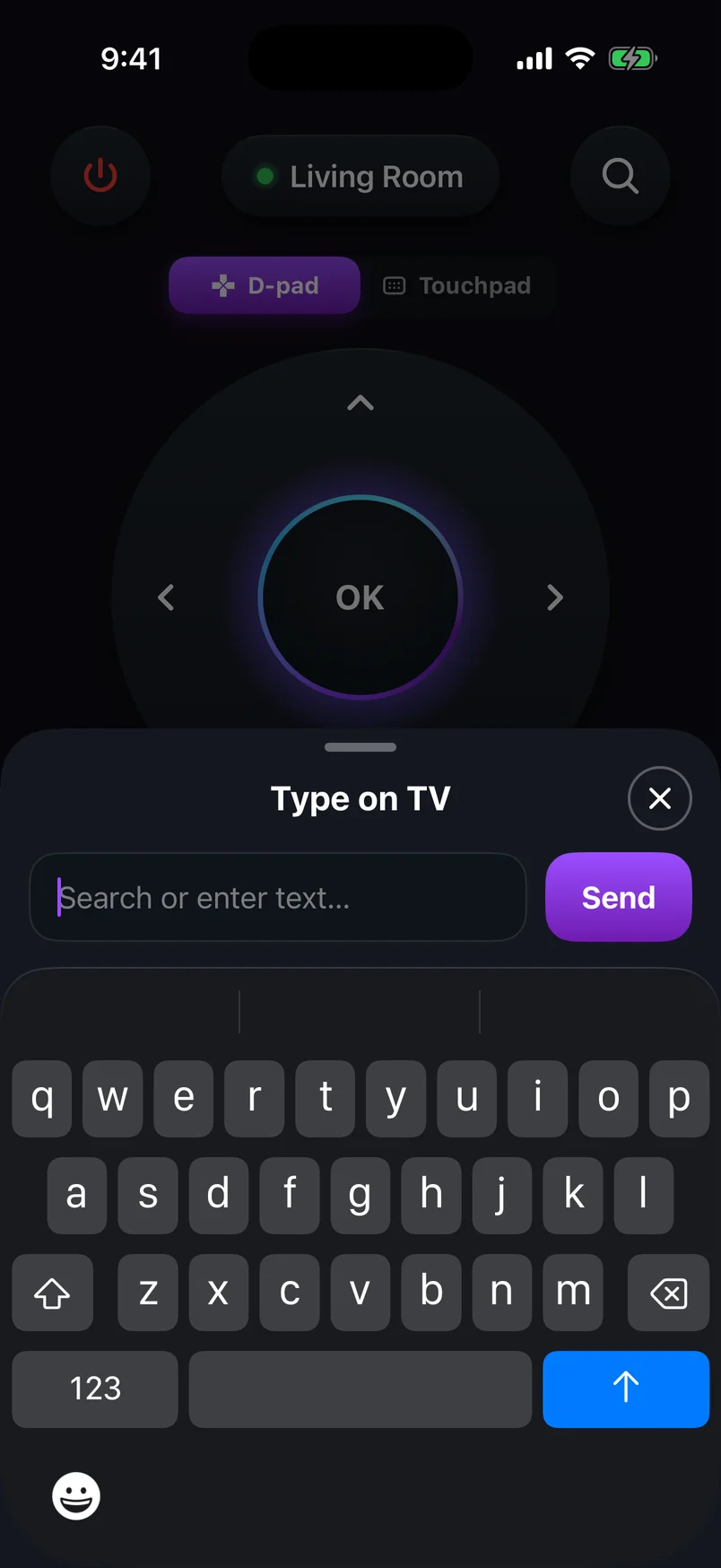
Type on TV sheet for sending text from the phone's keyboard to the Roku
Type on TV from the remote
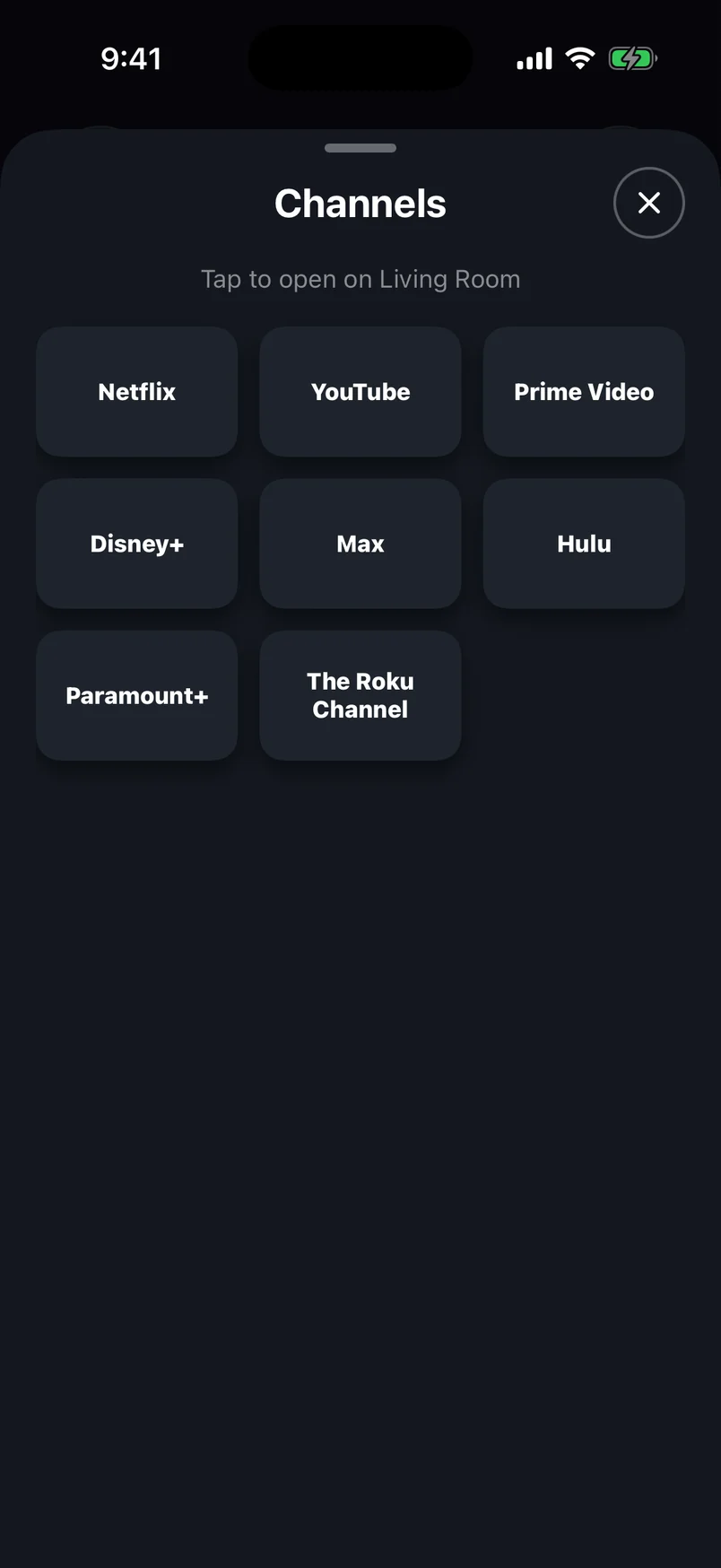
Channels sheet listing the Roku's installed channels to open in one tap
Your channels, one tap away

Use your voice

Voice is the fastest way to get somewhere. In our remote, tap Voice and say what you want — the command runs on the Roku you're connected to.
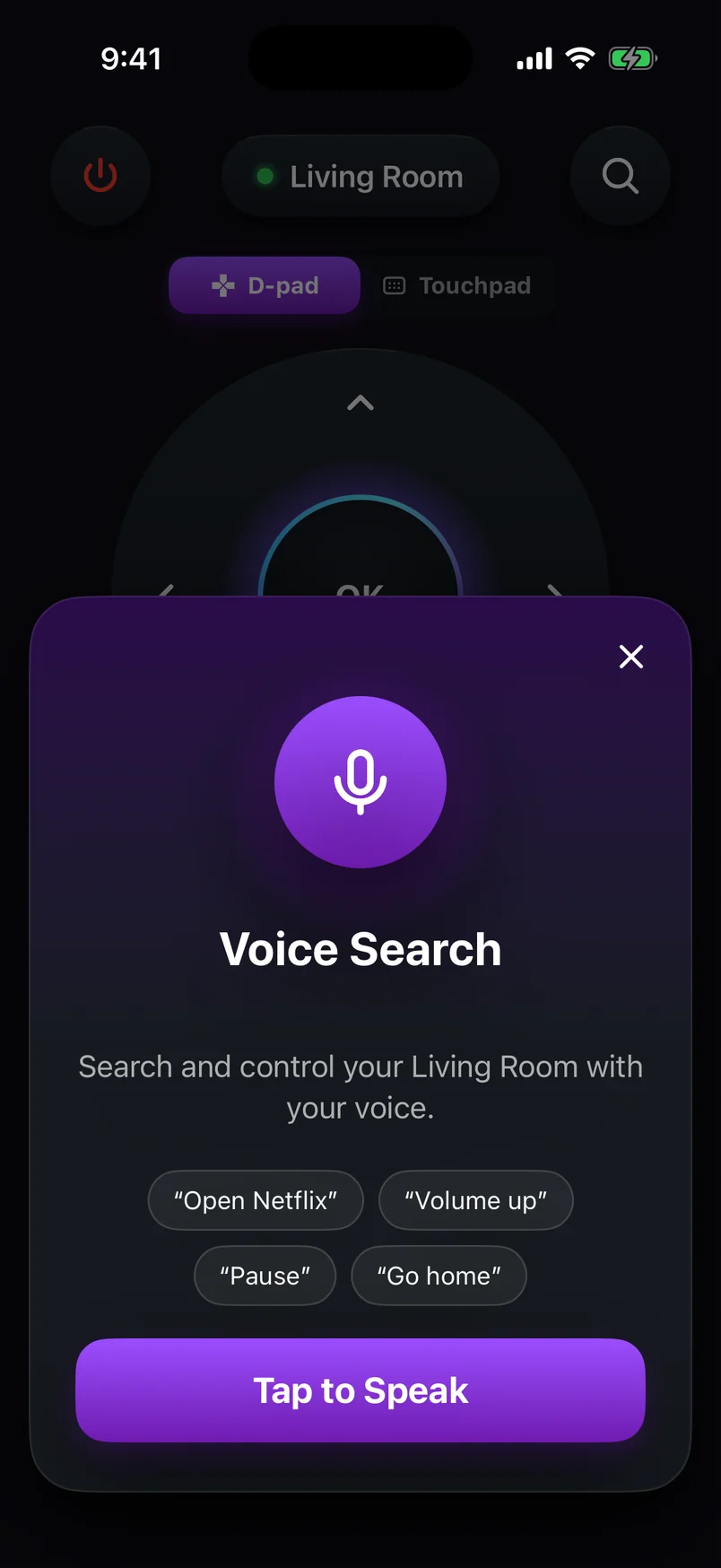
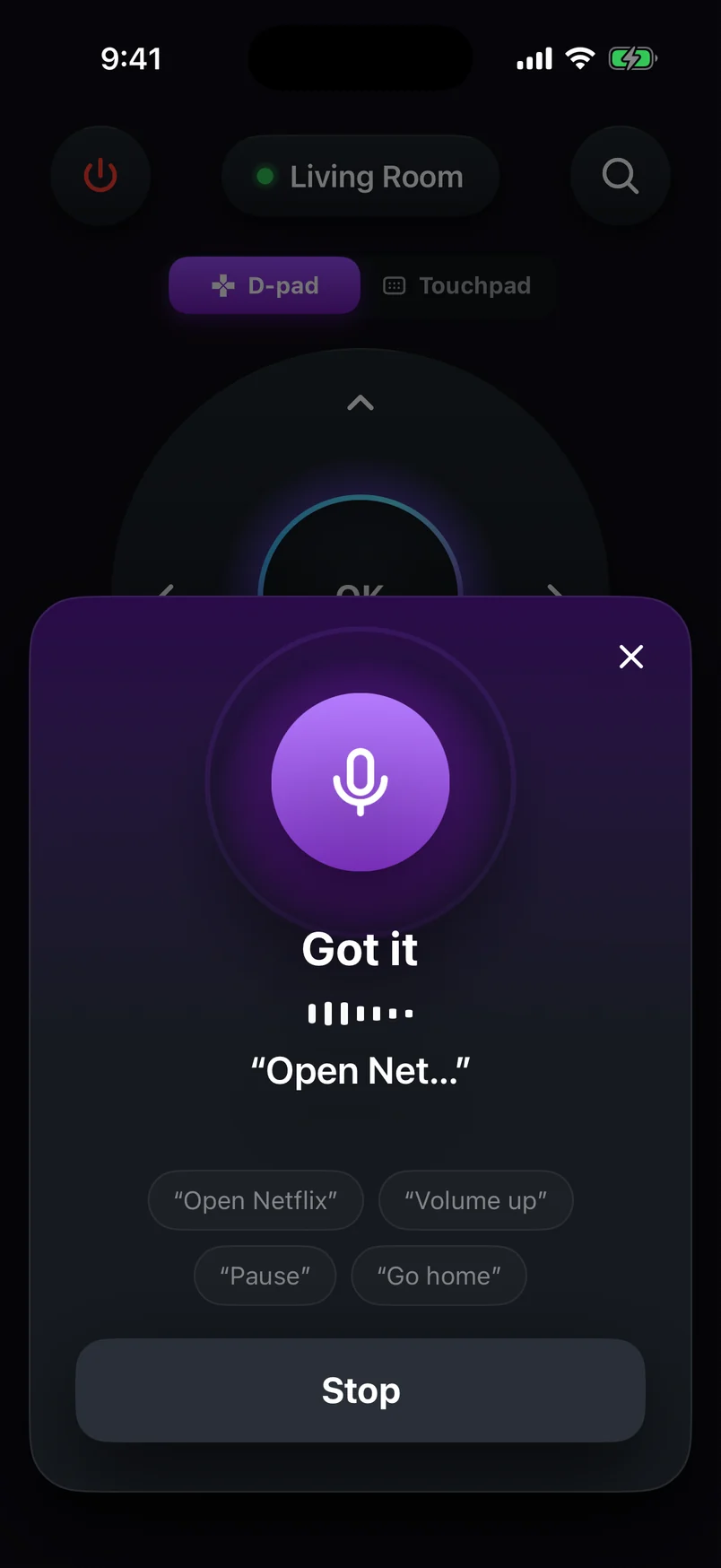
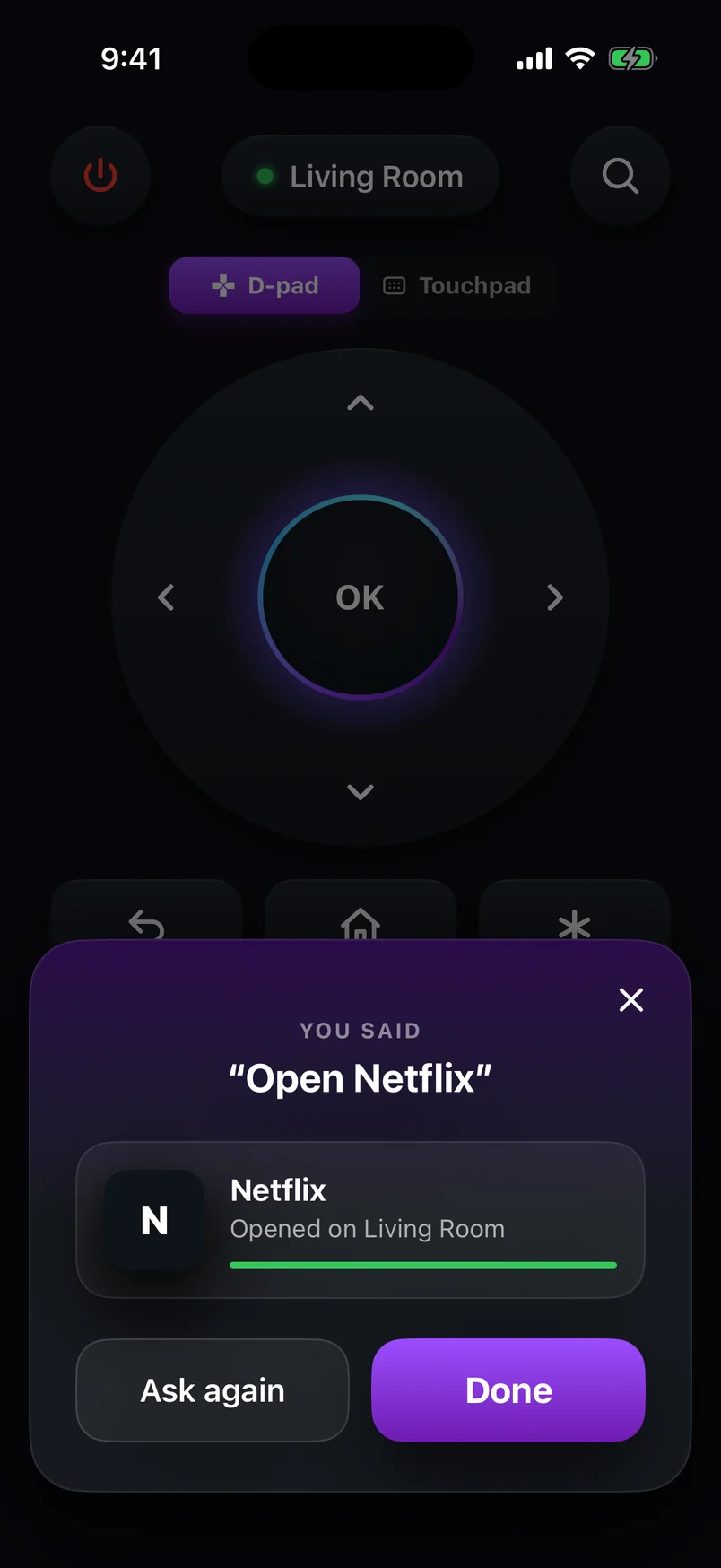
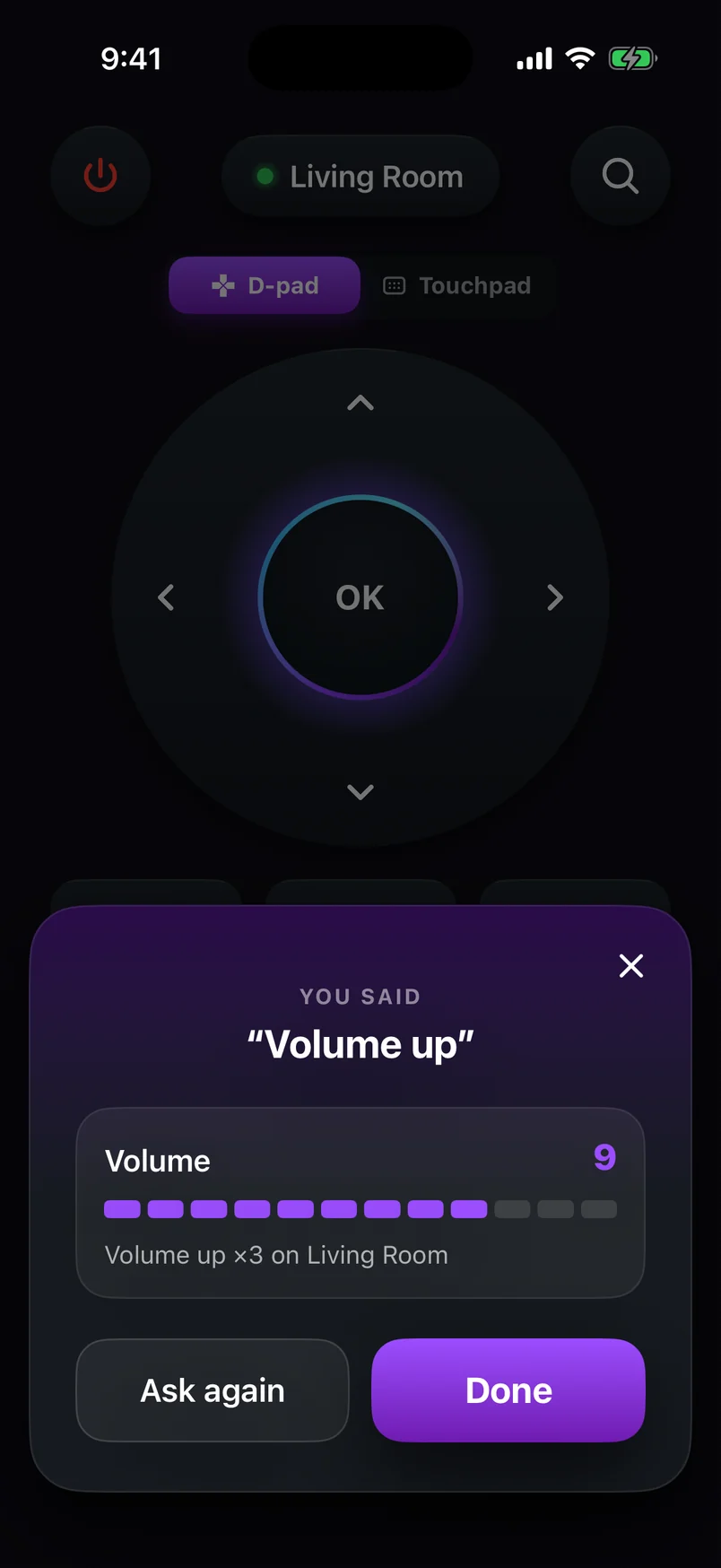
Voice Search sheet with example commands such as Open Netflix, Volume up and Go home
Step 1 of 4

Choose a step, use the arrows, or swipe the phone. Play to advance automatically.

Step 1 of 4: Tap Voice

SayWhat happens
“Open Netflix” / “Open YouTube”Launches that channel
“Volume up” / “Volume down” / “Mute”Changes the volume (Roku TVs, or players with CEC)
“Pause” / “Play”Controls playback
“Go home”Back to the Roku home screen
Commands work in English and Spanish. Your phone's speech service turns speech into text; our app never records or stores your voice.

Open channels in one tap

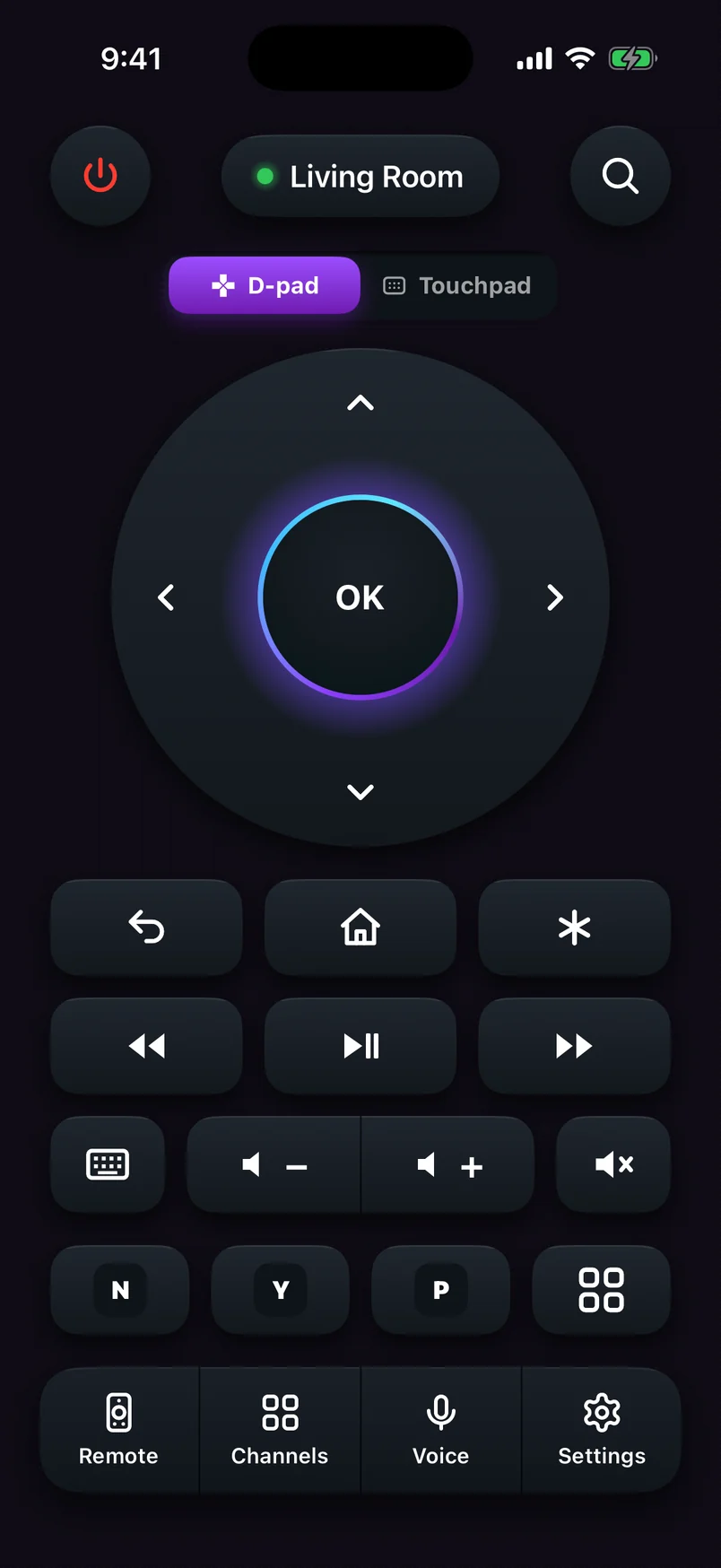
Your installed channels appear as keys on the remote, and the full list is one more tap away. It's quicker than scrolling the Roku home screen, especially if you have dozens of channels.

If typing doesn't work

  • Make sure a text field is actually selected on the TV — the keyboard sends text to wherever the cursor is.
  • Some channels use their own on-screen keyboards that don't accept typed text; use the arrows in those.
  • If nothing reaches the TV at all, check the Control by mobile apps setting — see our connection guide.
New to phone remotes?Start with how to use your phone as a Roku remote.

Frequently asked questions

Can I use my phone as a keyboard for Roku?

Yes. Open a text field on the Roku (a search box or a sign-in screen), then type in your remote app's keyboard. The text appears in the field on the TV.

Can I paste a password into my Roku?

Yes, with a phone remote app: paste it into the app's keyboard field and send it. That's much easier than entering a long password letter by letter.

What voice commands work with a Roku remote app?

In our app you can say things like “Open Netflix”, “Open YouTube”, “Volume up”, “Pause” and “Go home”, in English or Spanish.

Remote Cast Labs is an independent developer and is not affiliated with, endorsed or sponsored by Roku, Inc. Roku, Roku TV, Roku Express, Roku Streaming Stick, Roku Ultra and Roku Streambar are trademarks of Roku, Inc. Other product names belong to their owners.

Roku TV Remote
4.8 · Free on Android & iOS

Control your Roku from anywhere in the room.

  • Full remote: D-pad or touchpad, playback, volume and power
  • Type on your TV with your phone's keyboard
  • Voice commands like “Open Netflix” or “Volume up”
  • Your channels as one-tap keys
Roku remote app connected to the Living Room Roku, with the D-pad, playback, volume and channel keys
Voice command result: Netflix opened on the Living Room Roku
All articles →