
Roku's sticks are now its main players: in 2025 the Streaming Stick and Streaming Stick Plus replaced the Roku Express line. They're great for mirroring, with a couple of stick-specific things to get right.
Which stick do you have?
| Model | Stick | Resolution | Mirroring |
|---|---|---|---|
| 3840 | Streaming Stick (2025) | 1080p HD | Built-in + app |
| 3830 | Streaming Stick Plus (2025) | 4K HDR | Built-in + app |
| 3820 | Streaming Stick 4K | 4K HDR, Dolby Vision | Built-in + app |
| 3821 | Streaming Stick 4K+ | 4K HDR, Dolby Vision | Built-in + app |
| 3810 · 3811 | Streaming Stick+ | 4K HDR | Built-in + app |
| 3800 | Streaming Stick | 1080p HD | Built-in + app |
How to mirror Android to a Roku Streaming Stick
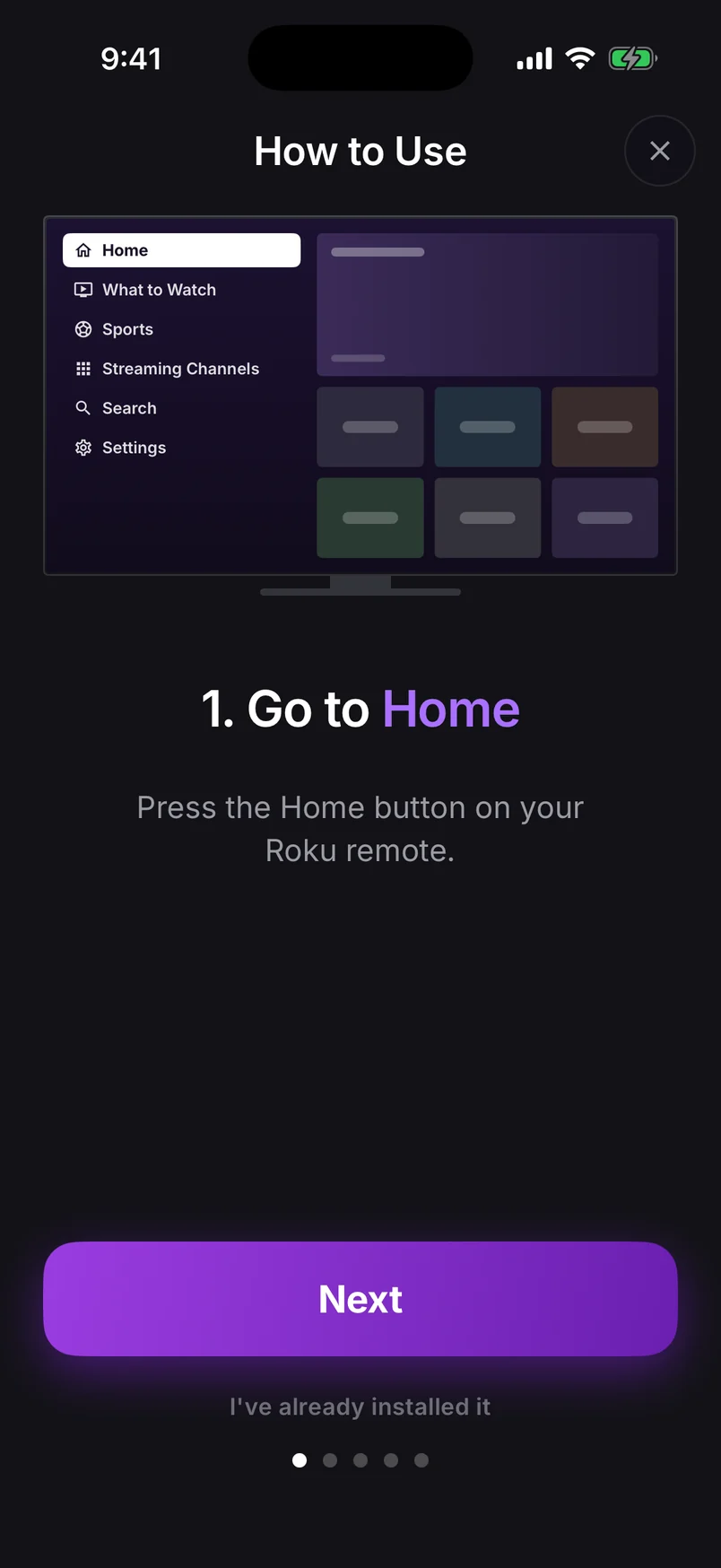
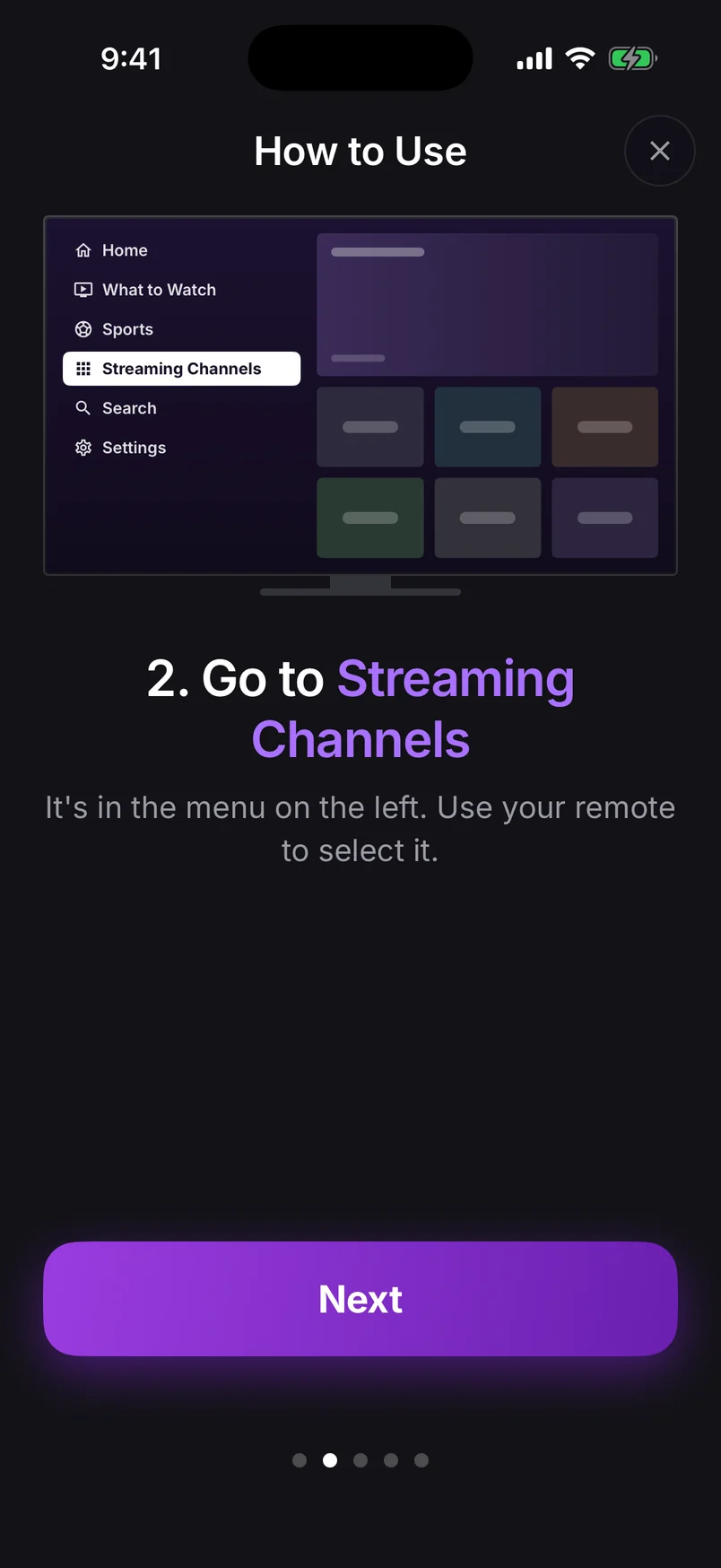
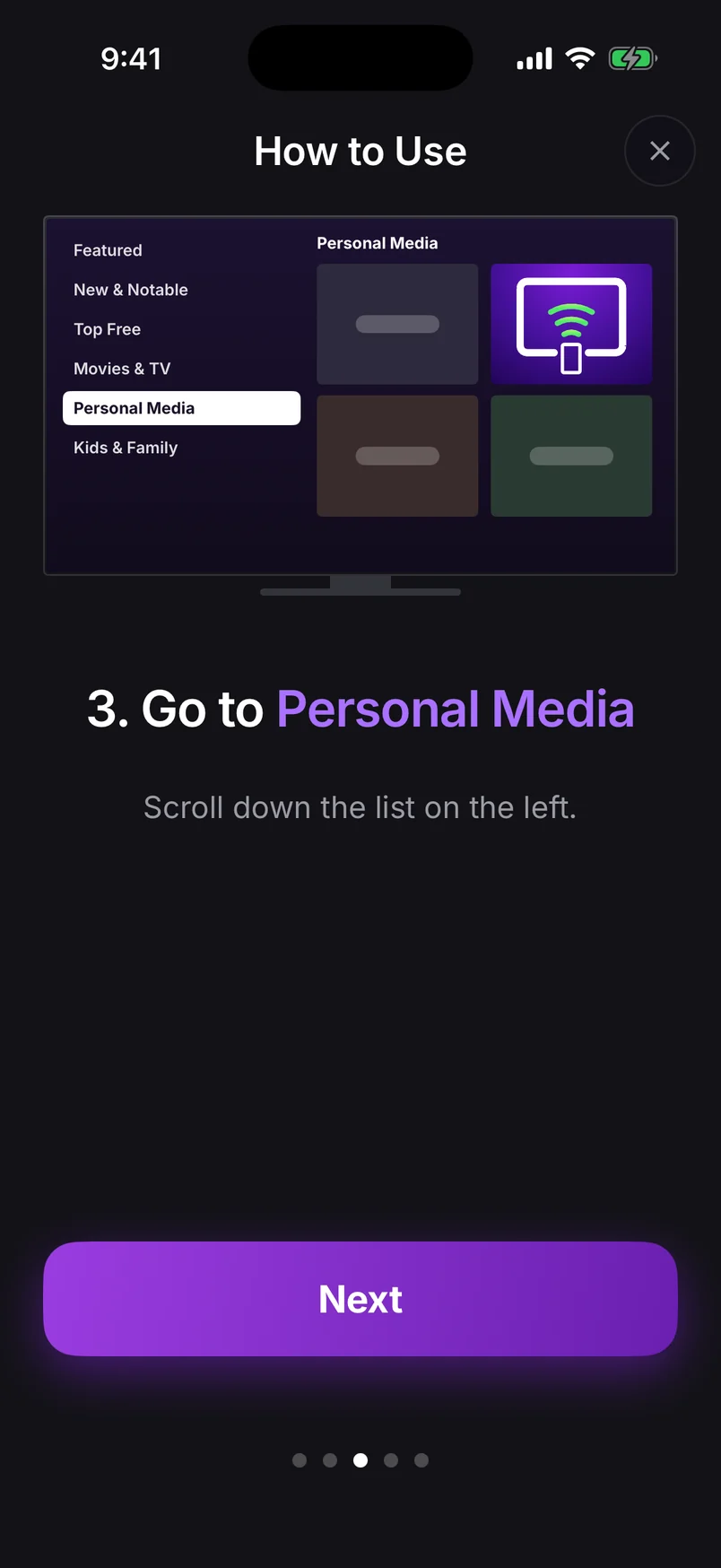
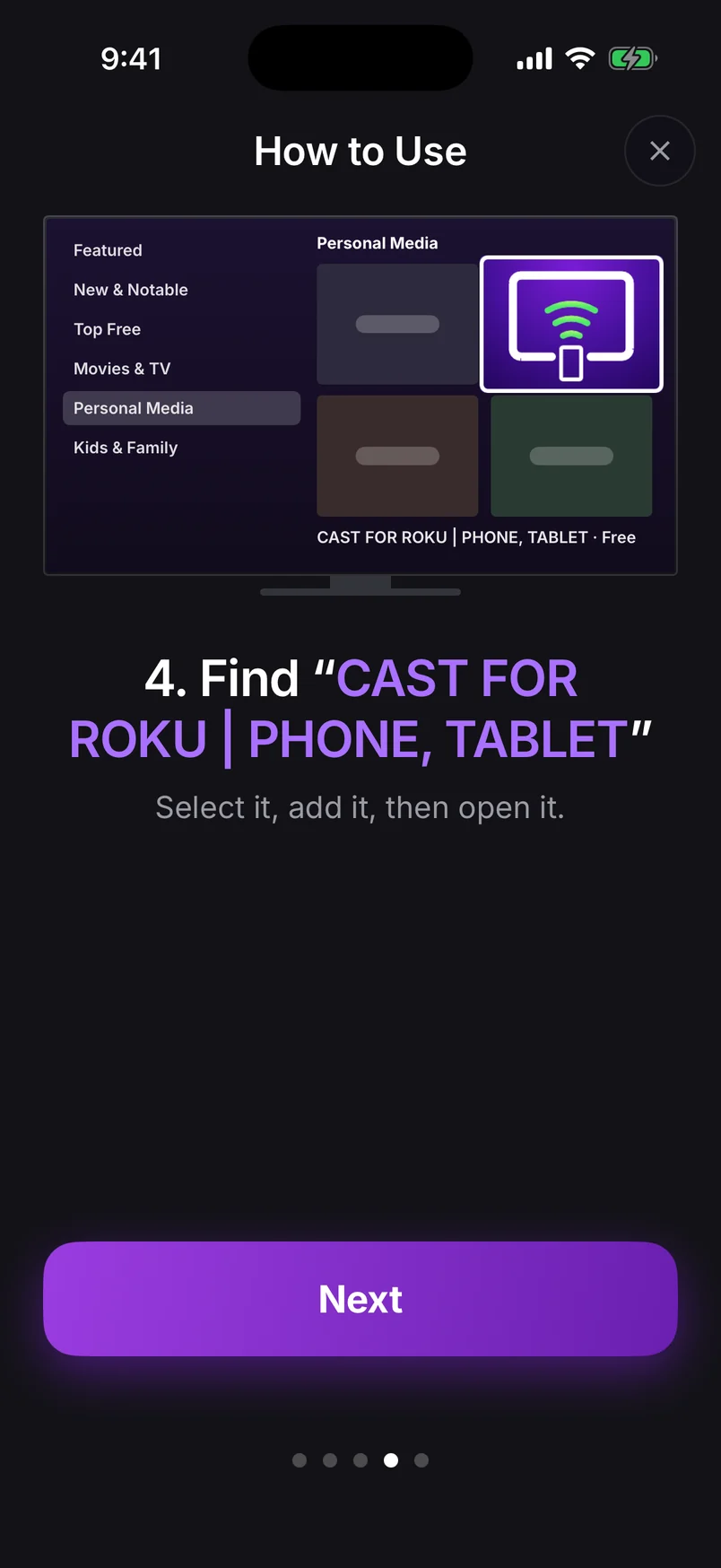
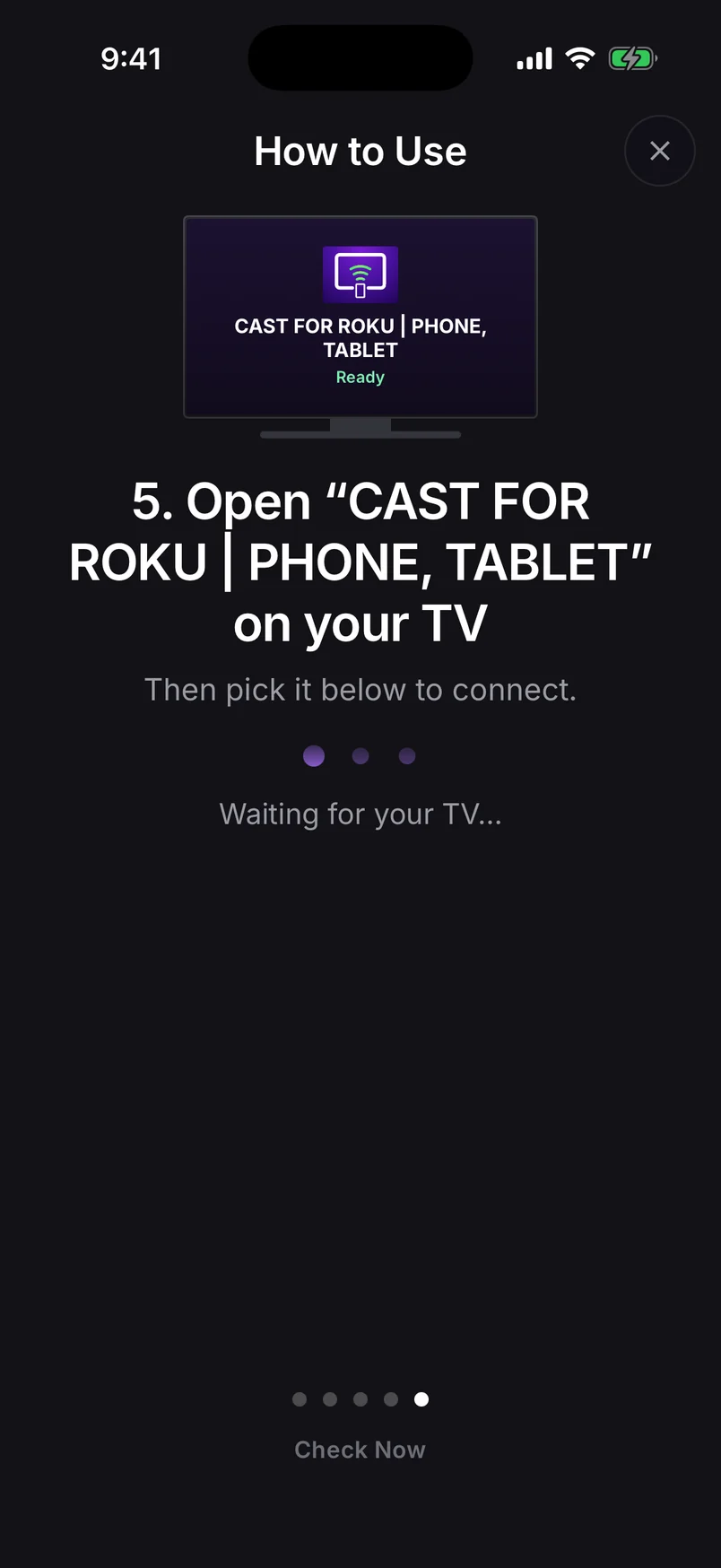
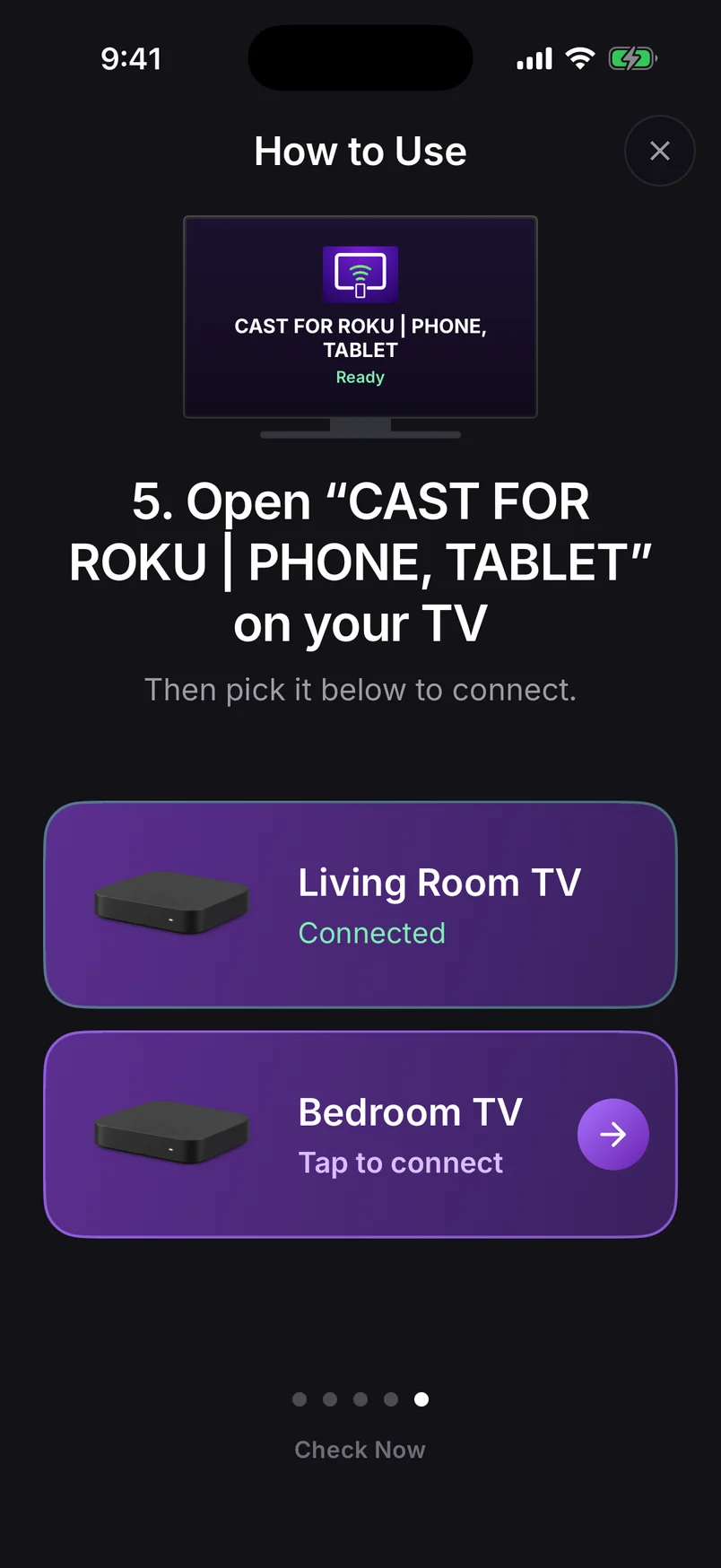
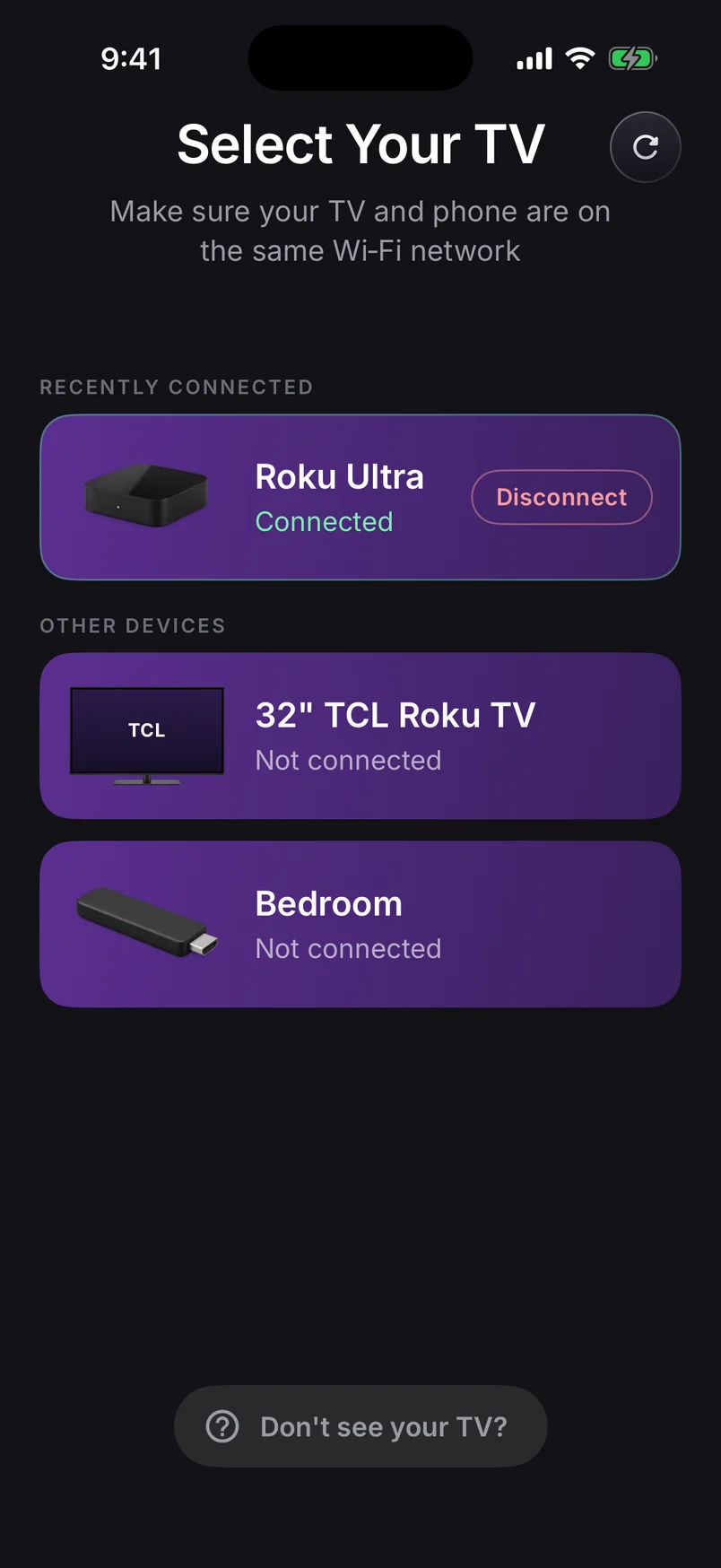
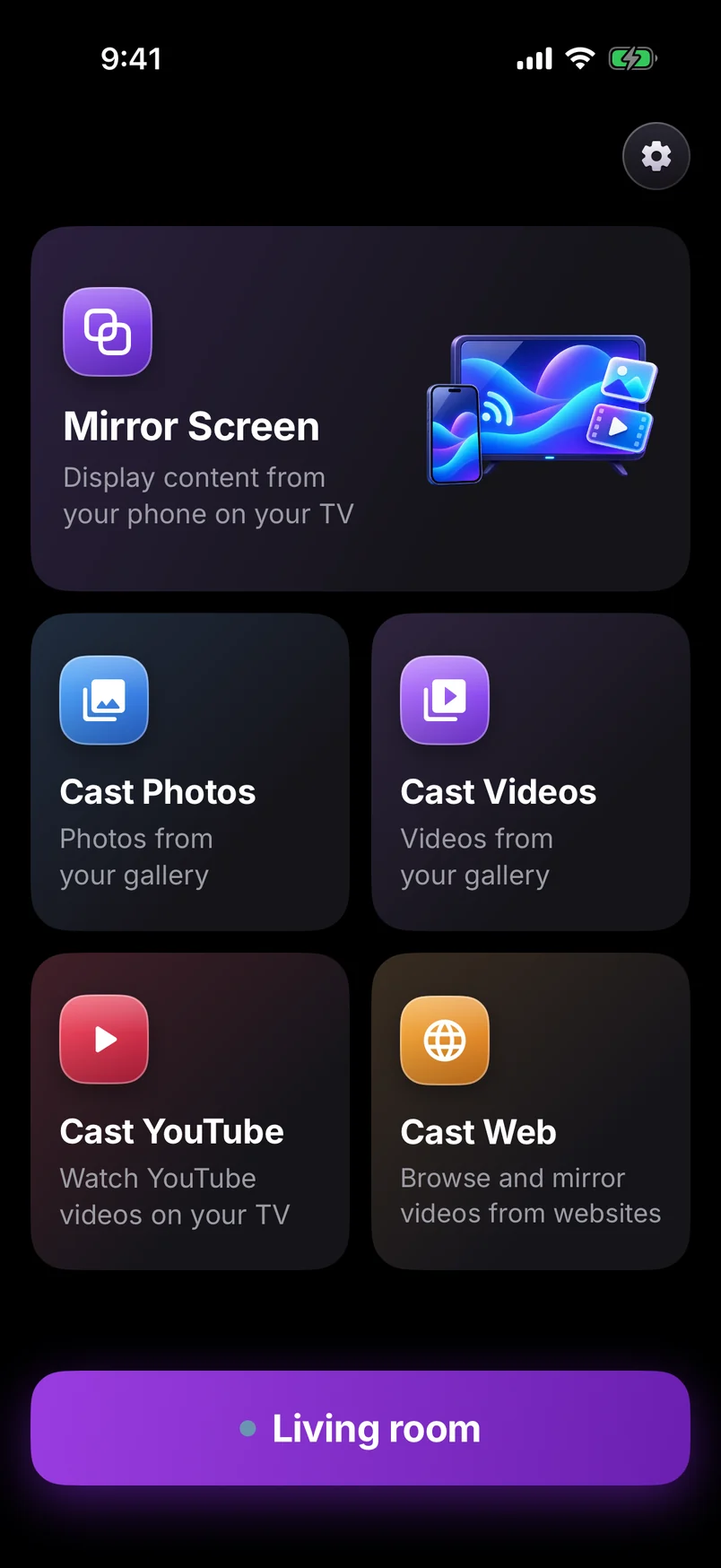
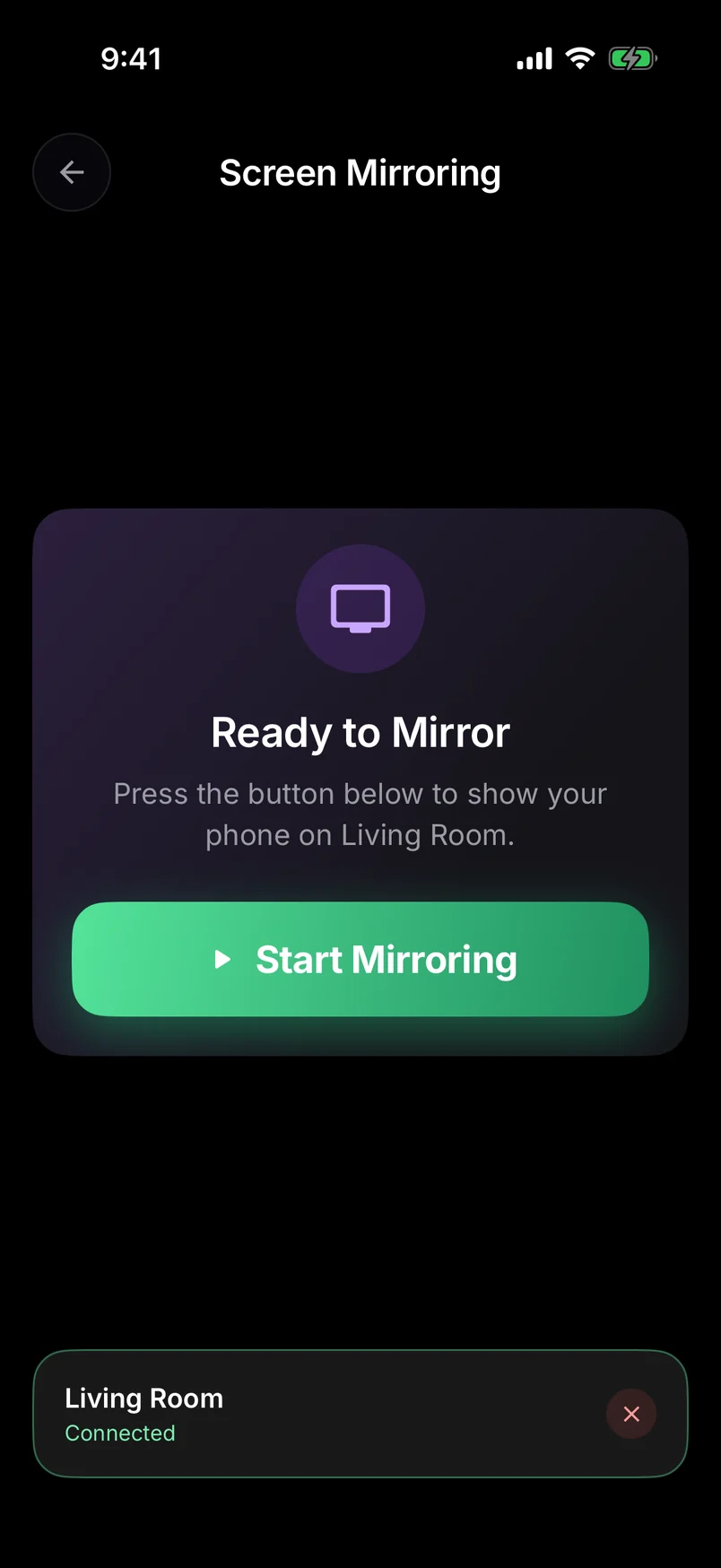
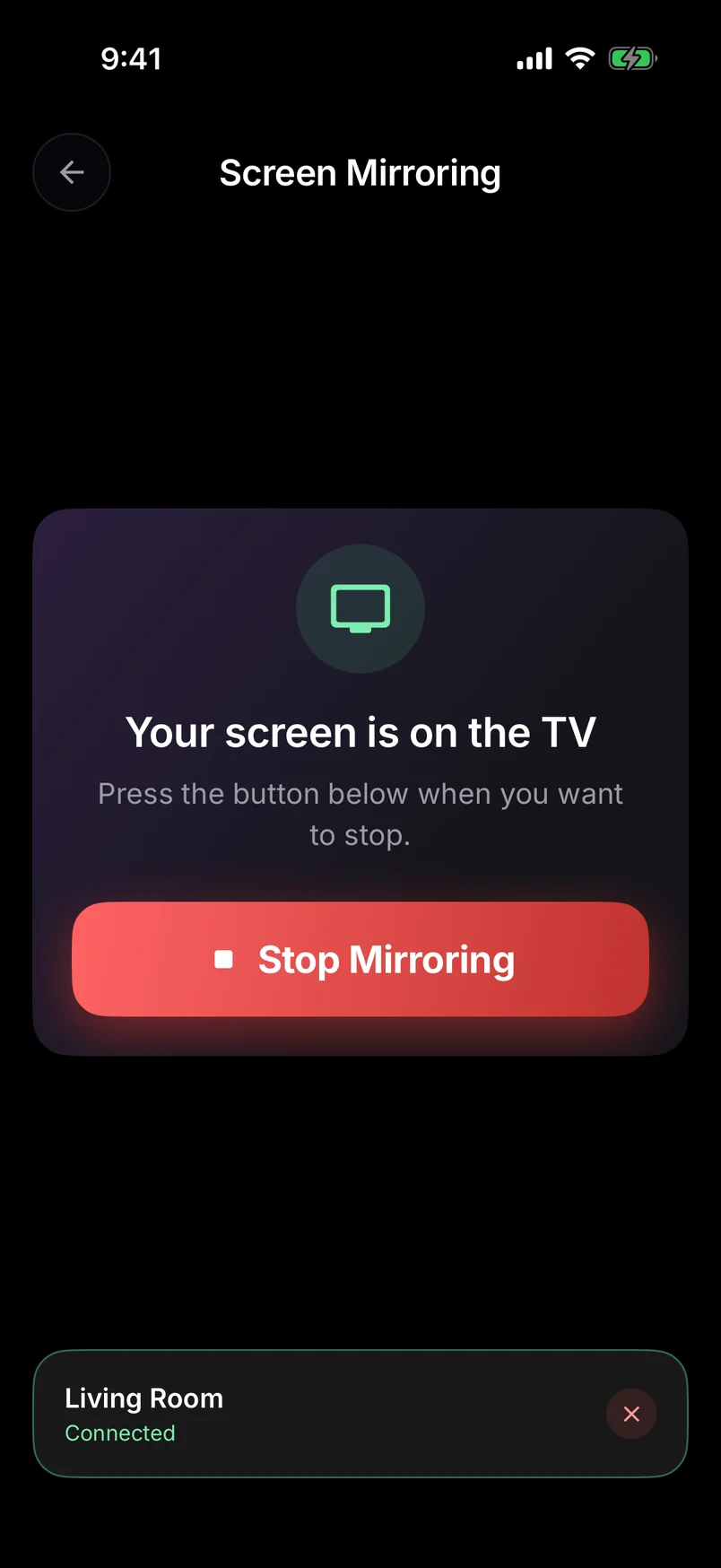
Choose a step, use the arrows, or swipe the phone. Play to advance automatically.
Step 1 of 10: Press Home on your Roku remote
Full walkthrough: how to screen mirror Android to a Roku TV.
If your phone has Smart View or Wireless display, you can also use the stick's built-in mirroring: turn on SettingsSystemScreen mirroring, then pick the stick from your phone's cast menu. Pixel owners should use the app — here's why.
Sticks and Wi-Fi: the part that matters
A stick plugs straight into the back of the TV, which is the worst spot in the room for Wi-Fi: the TV's metal back and the wall both block signal. Mirroring sends a constant stream of video, so a weak signal shows up as stutter or a frozen frame.
- Add a short HDMI extender cable to move the stick out from behind the TV — it often fixes a weak signal on its own.
- Check signal strength under Settings › Network › About. “Excellent” or “Good” is what you want.
- Connect the stick and your phone to your router's 5 GHz network if it has a separate one.
- Pick Instant Video mode for apps and games; Screen + Sound adds a little buffering for audio.
Power it properly
Sticks draw power over USB. Some TV USB ports don't supply enough, which can make the stick restart or drop connections during a long mirroring session. If you see unexplained restarts, use the wall power adapter if your stick came with one, or a USB phone charger.
4K sticks: what quality to expect
On the Stick Plus, Stick 4K and 4K+, mirroring runs at up to 1080p and your TV upscales it — which looks sharp from the couch. For the best quality on a photo or video, cast that one item instead of mirroring. More on mirroring with 4K Rokus.
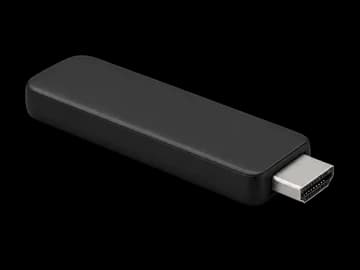
Roku's current sticks run the companion channel without a hitch. Keep the stick's Wi-Fi signal strong for a smooth picture.
Streaming Stick guide →Mirrors in up to 1080p, upscaled by your 4K TV. Cast a photo or video instead for the sharpest picture.
Streaming Stick 4K guide →


