
It's one of the most common frustrations we hear: a brand-new Pixel, a Roku TV, and a Cast button that just spins. Nothing is broken — the two simply speak different languages.
Why your Pixel can't see your Roku
Roku's built-in mirroring receiver uses Miracast, a standard that lets a phone stream its screen straight to a TV. Samsung (Smart View), Motorola and many other phone makers include it. Google removed it from Nexus and Pixel phones years ago in favor of Google Cast — which is what Chromecast and Google TV understand, and Roku doesn't. Roku's own support pages list Google-branded phones as the exception to Android mirroring.
No setting on the Pixel or the Roku changes this. What does work is mirroring over your home Wi-Fi instead.
How to mirror a Pixel to Roku
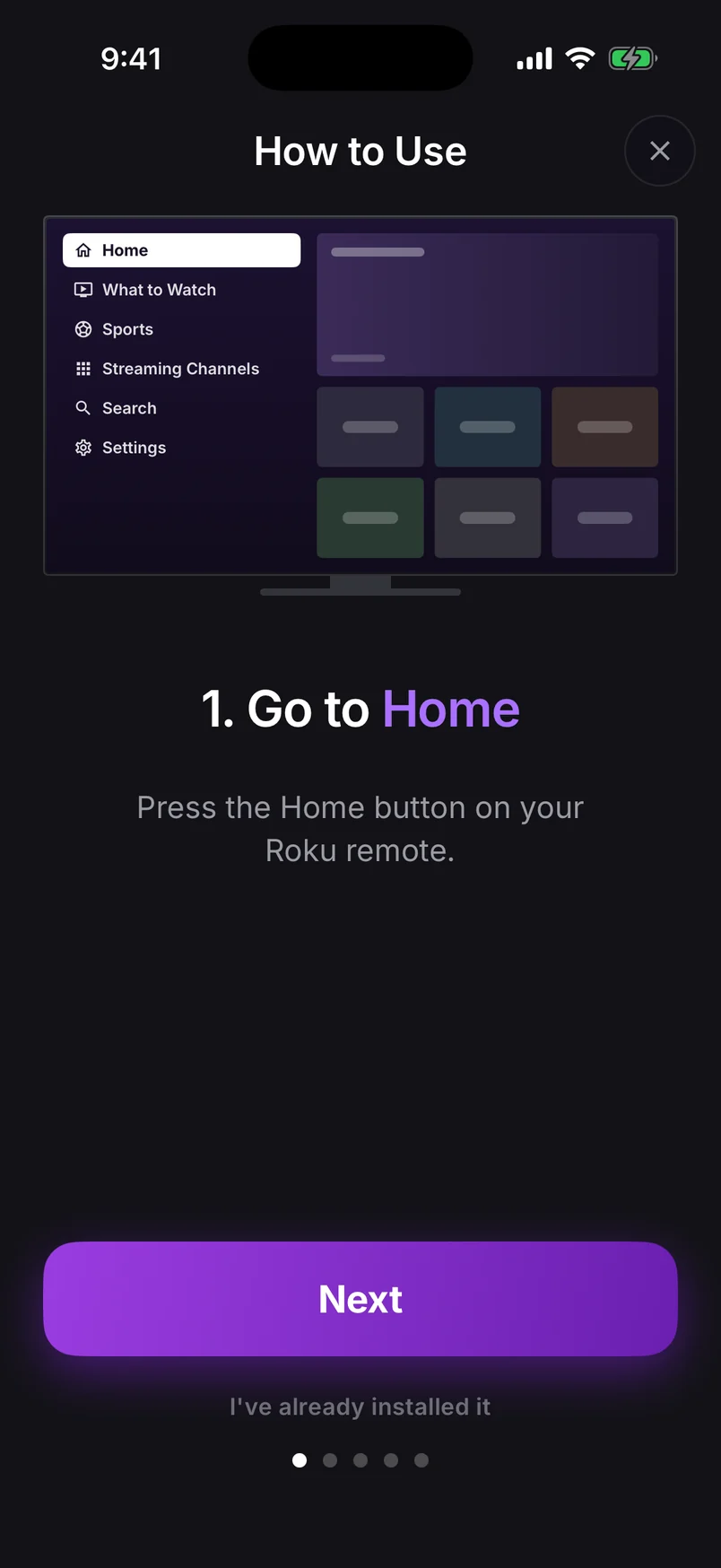
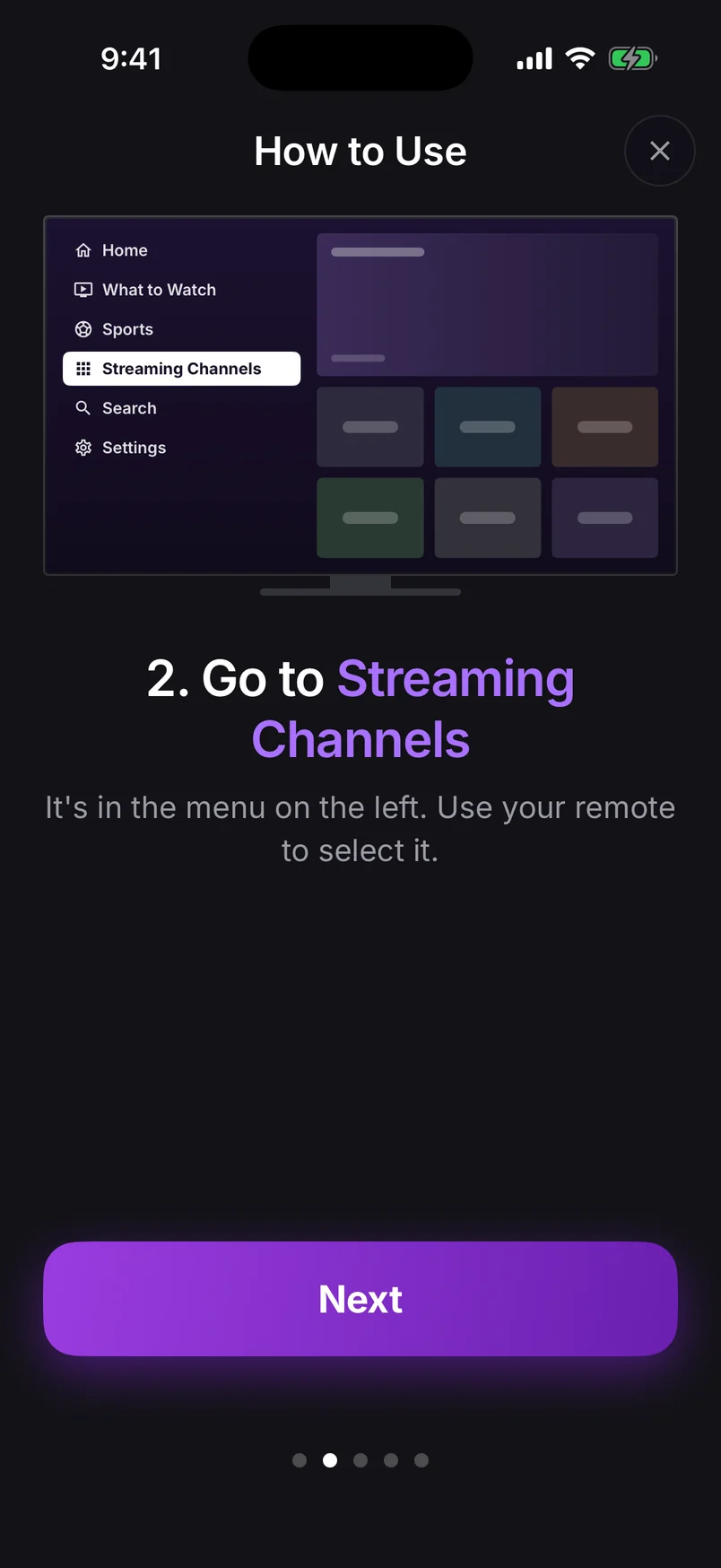
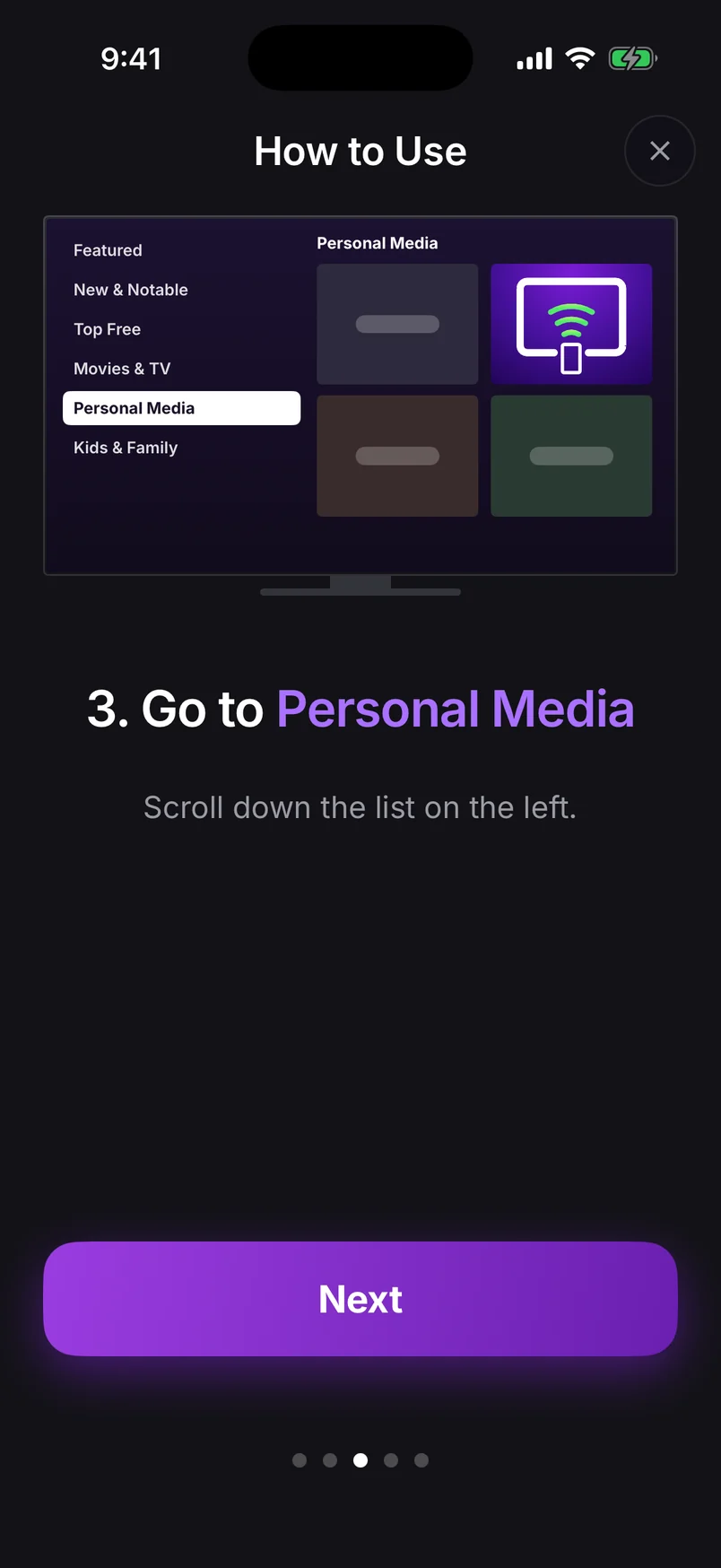
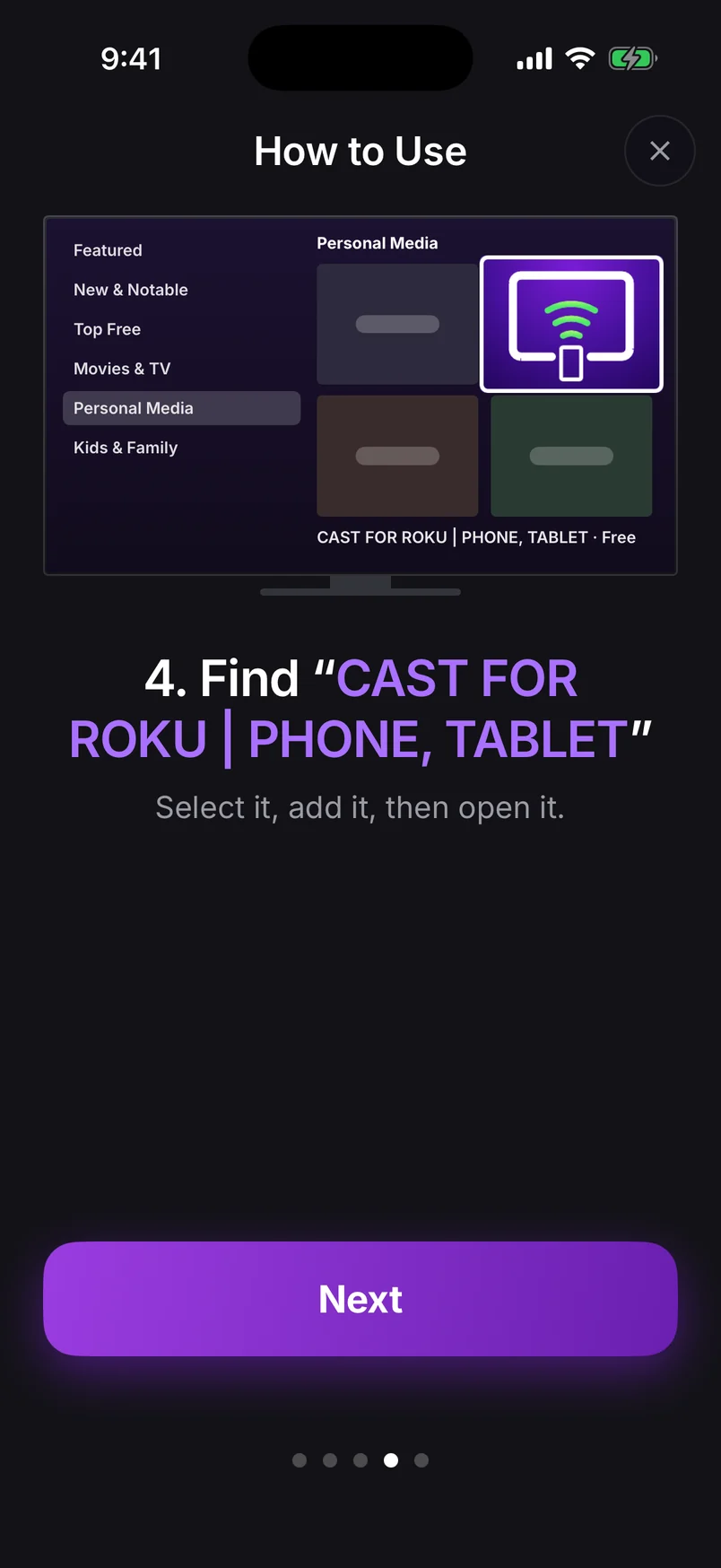
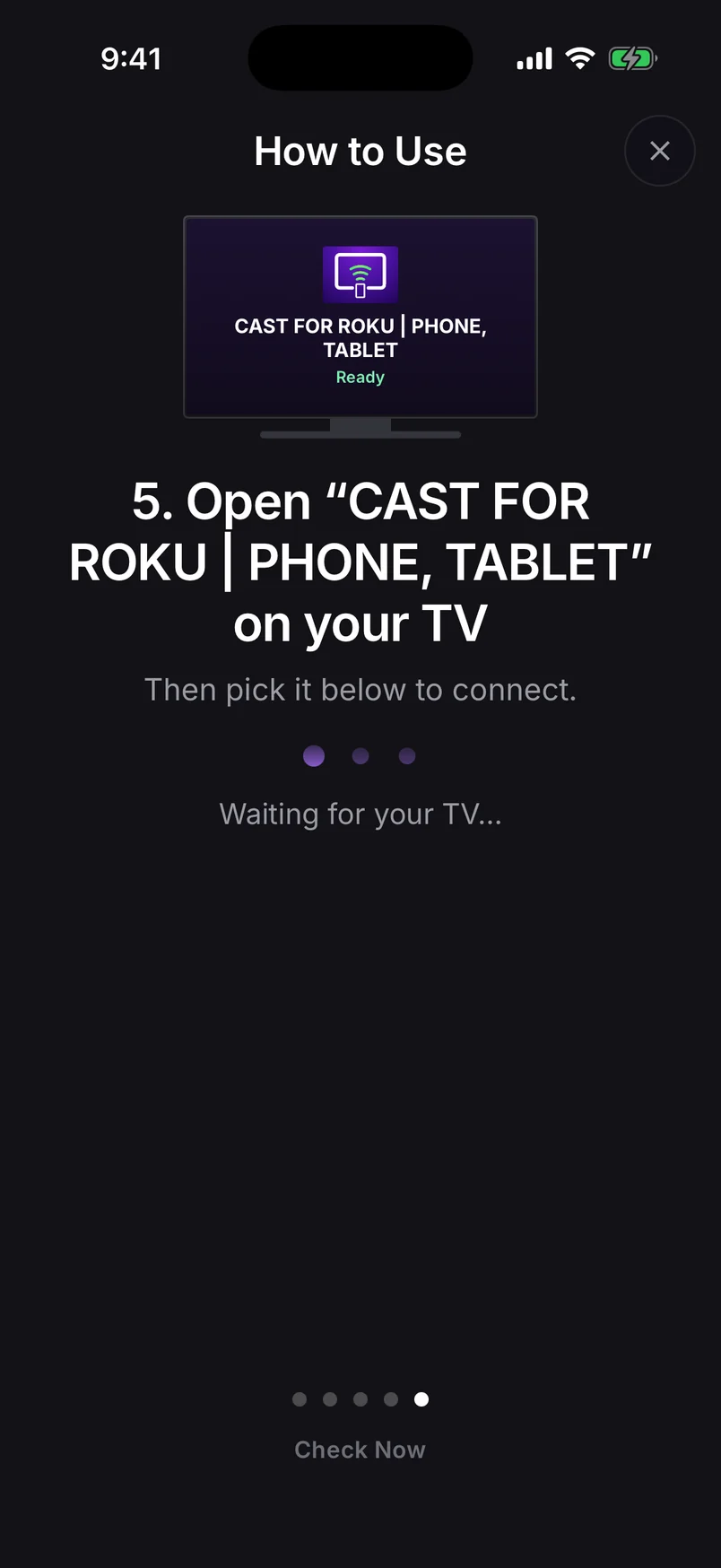
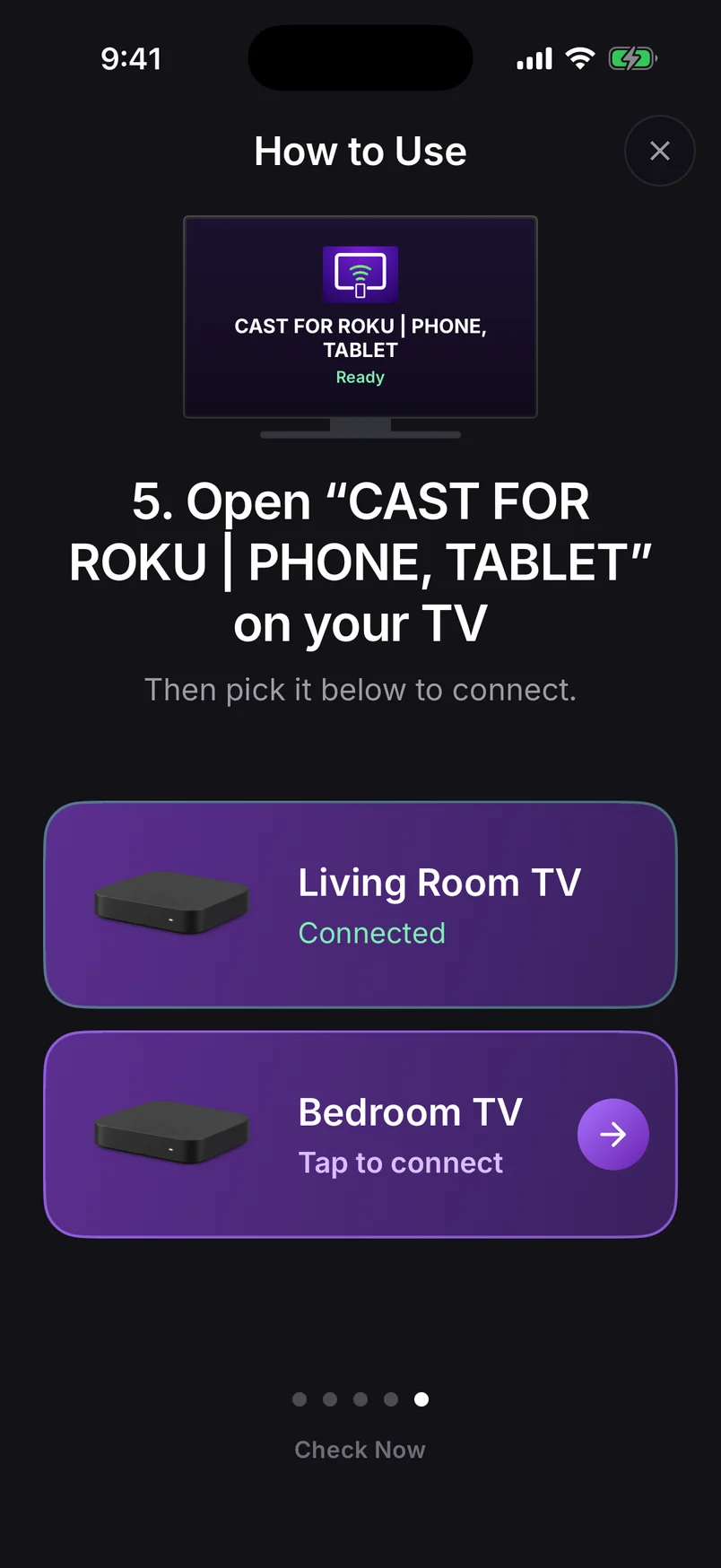
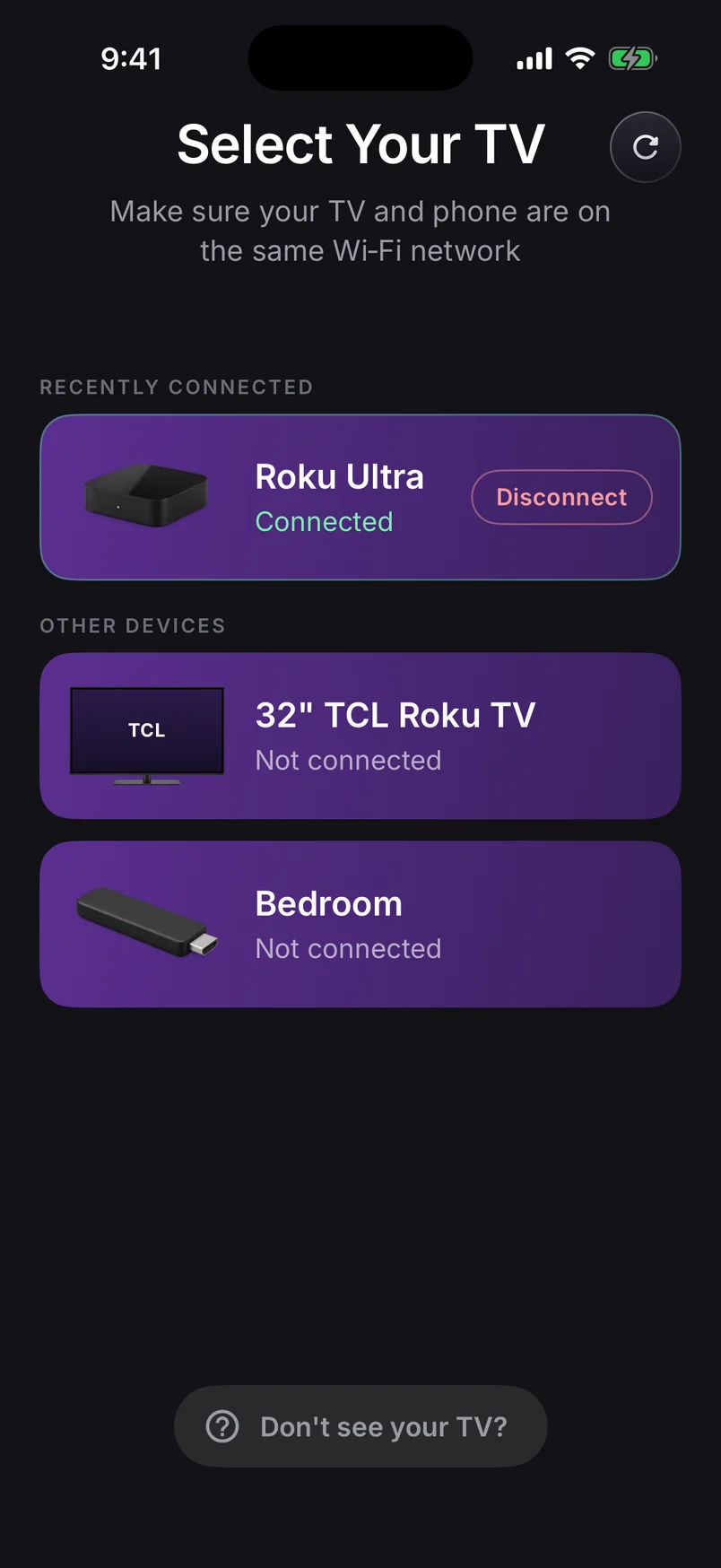
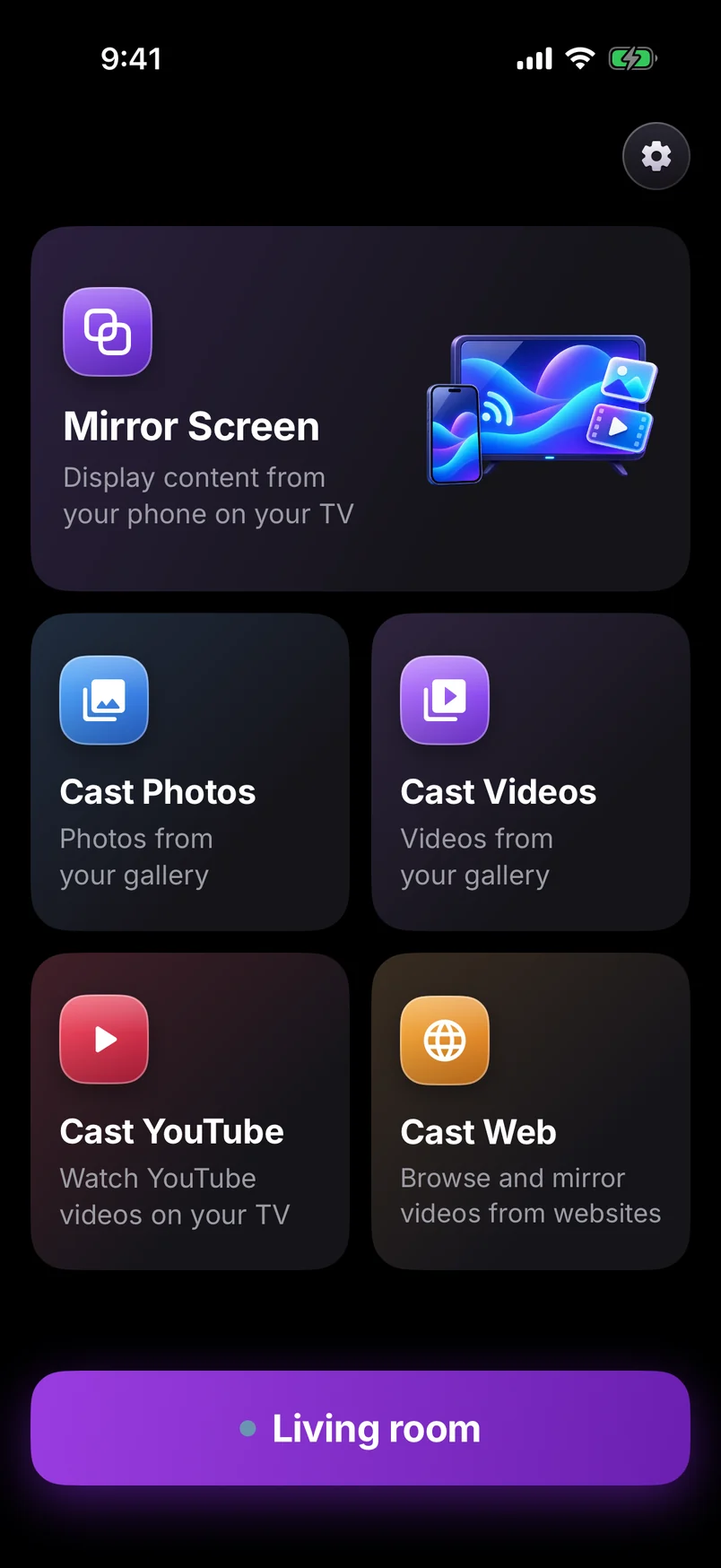
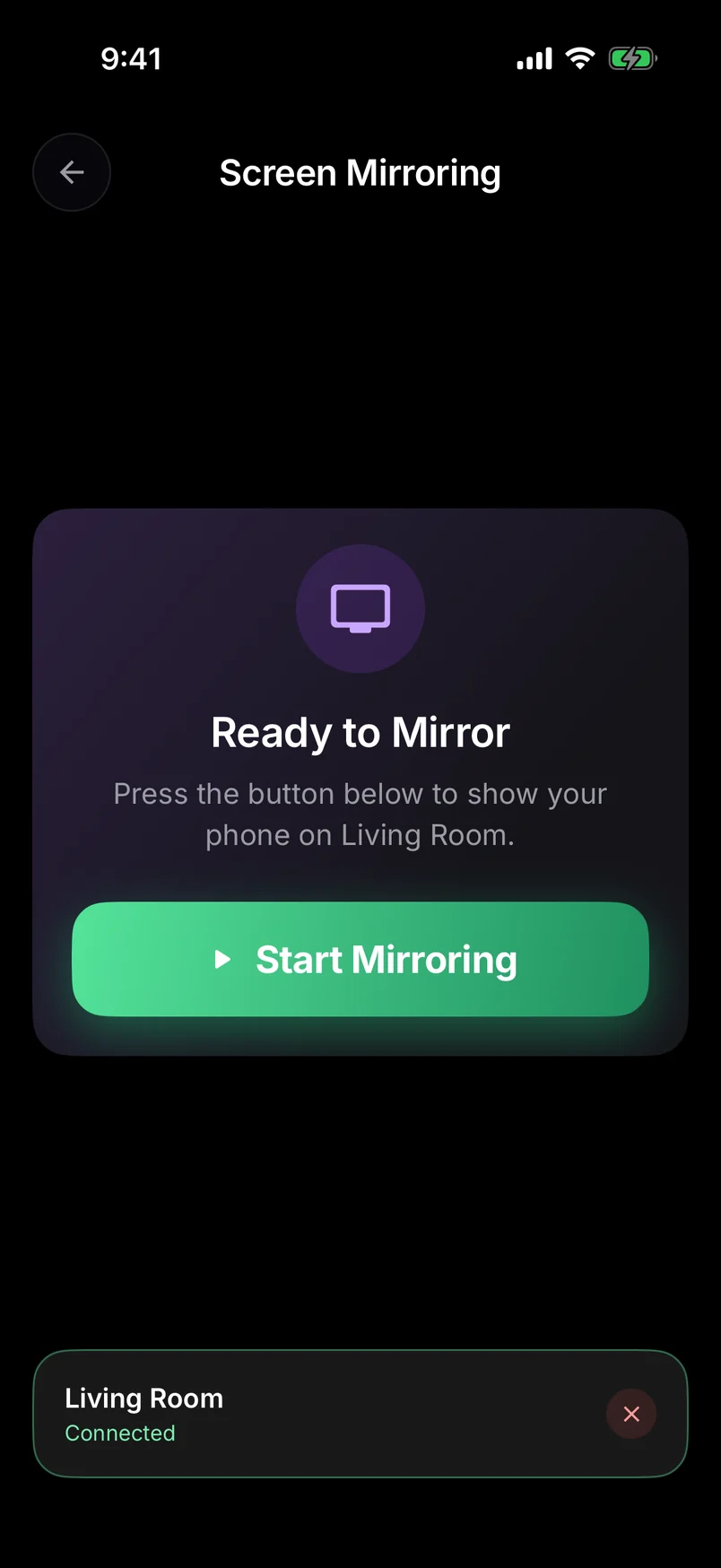
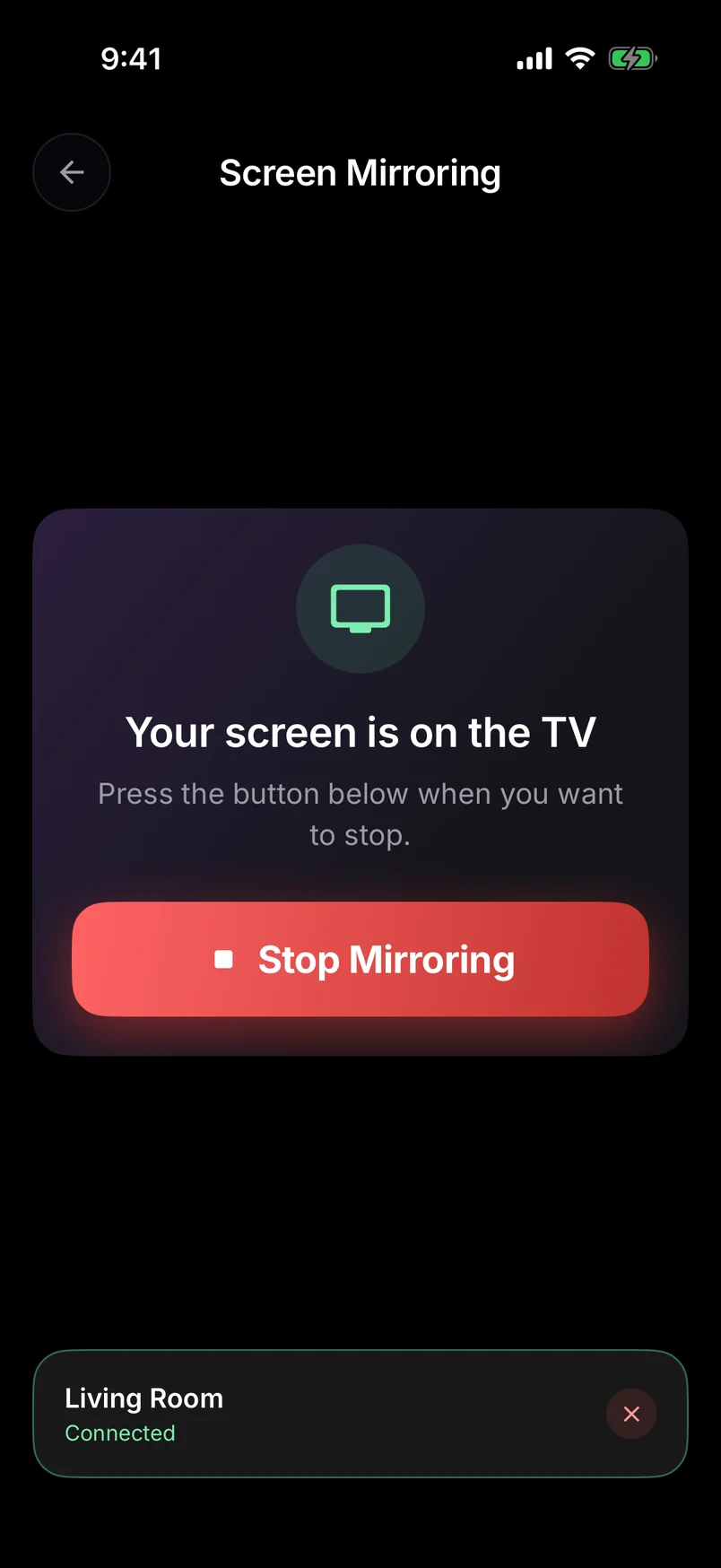
Choose a step, use the arrows, or swipe the phone. Play to advance automatically.
Step 1 of 10: Press Home on your Roku remote
Full walkthrough: how to screen mirror Android to a Roku TV.
When you tap Mirror Screen, the Pixel asks for permission to share your screen — that's Android's standard privacy check, and it appears each time you start.
All your options compared
| Option | Works with Roku? | What you get |
|---|---|---|
| Pixel Screen Cast tile | No | Mirrors to Chromecast and Google TV only |
| Cast button inside YouTube | Yes | Plays that YouTube video on the Roku's YouTube channel |
| Roku's official app | Partly | Shares photos and videos from your phone, not your whole screen |
| Screen mirroring app + Roku channel | Yes | Whole screen, with sound, plus photo, video, YouTube and web casting |
Getting sound on the TV
Choose Screen + Sound and allow the audio permission when Android asks. On Android 10 and later the TV plays your phone's audio. Some apps block audio capture and stay silent on purpose — and protected streaming apps (Netflix, Disney+ and others) show a black screen when mirrored. Watch those in their own Roku channel.


