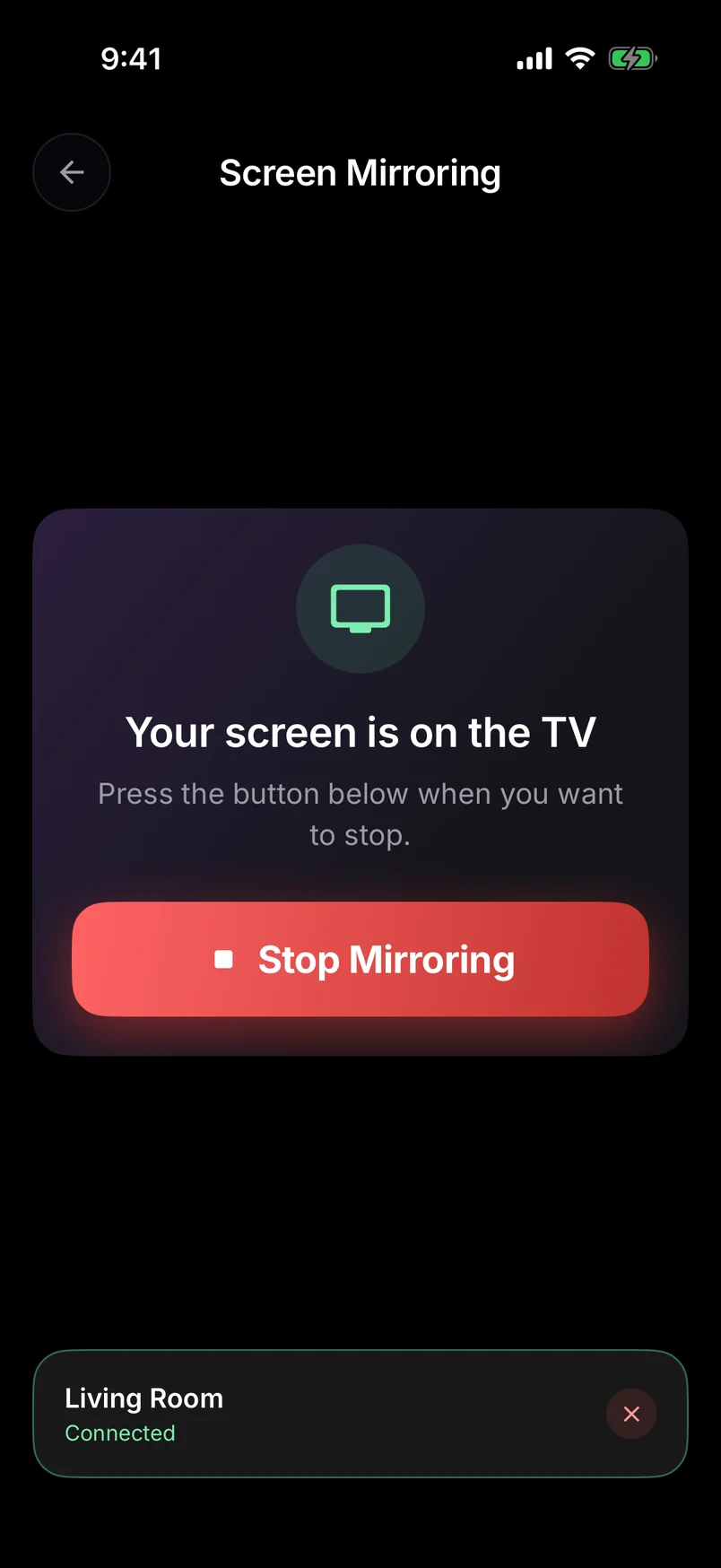
Compatibility

How to screen mirror to a Roku TV (TCL, Hisense, onn. and more)

TCL, Hisense, onn., Sharp, Philips, Westinghouse, JVC or a Roku-made TV — if it says Roku TV, here's how to mirror your Android phone to it, step by step.

RRemote Cast Labs Team · · 6 min read
In this article

First: is it really a Roku TV?

Brands like TCL and Hisense sell TVs with several different operating systems, so the brand alone doesn't tell you. A Roku TV boots to the purple Roku home screen, has a Roku-style remote with a Home button, and shows SettingsSystemAbout with a Roku TV model. If your TV runs Google TV, Fire TV, VIDAA or webOS instead, it isn't a Roku TV and this guide won't apply.

How to mirror Android to a Roku TV
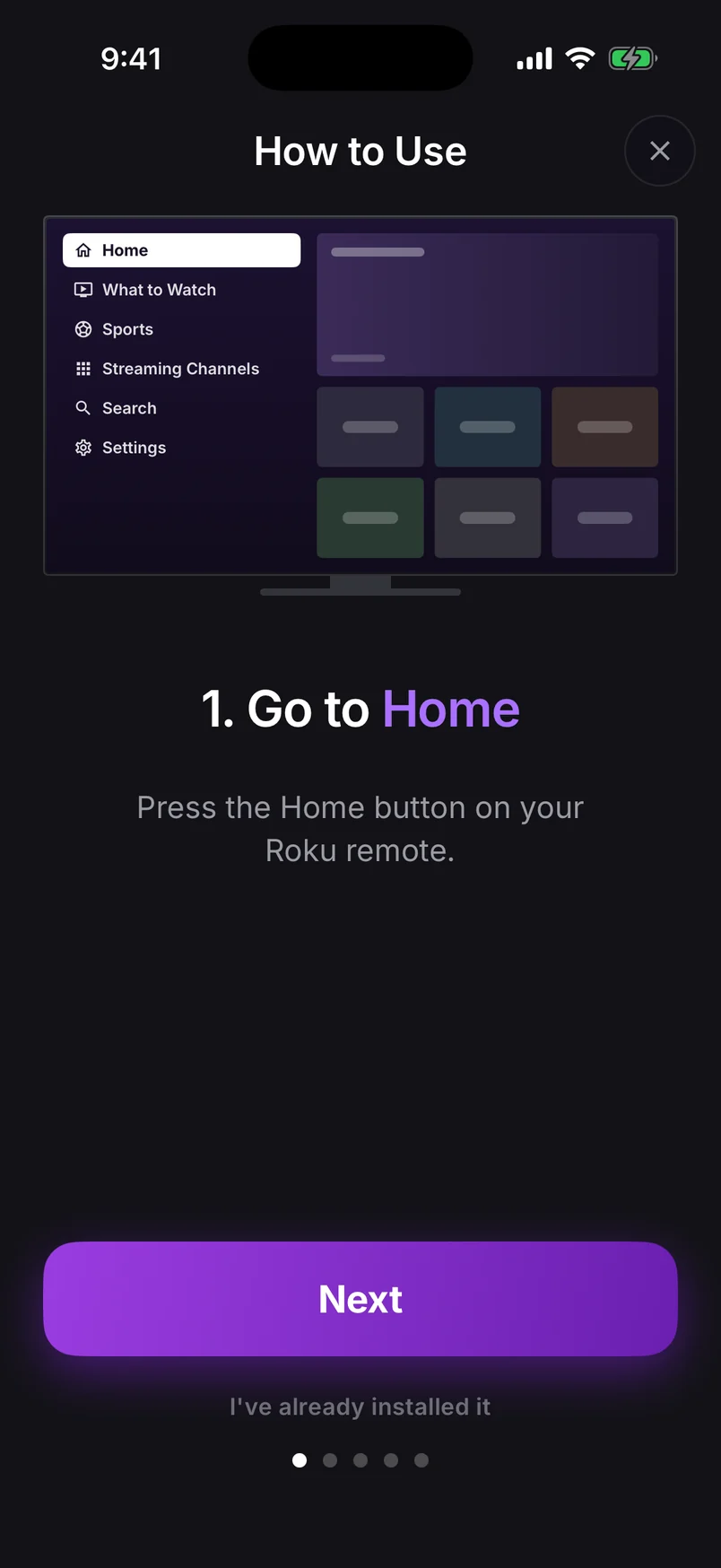
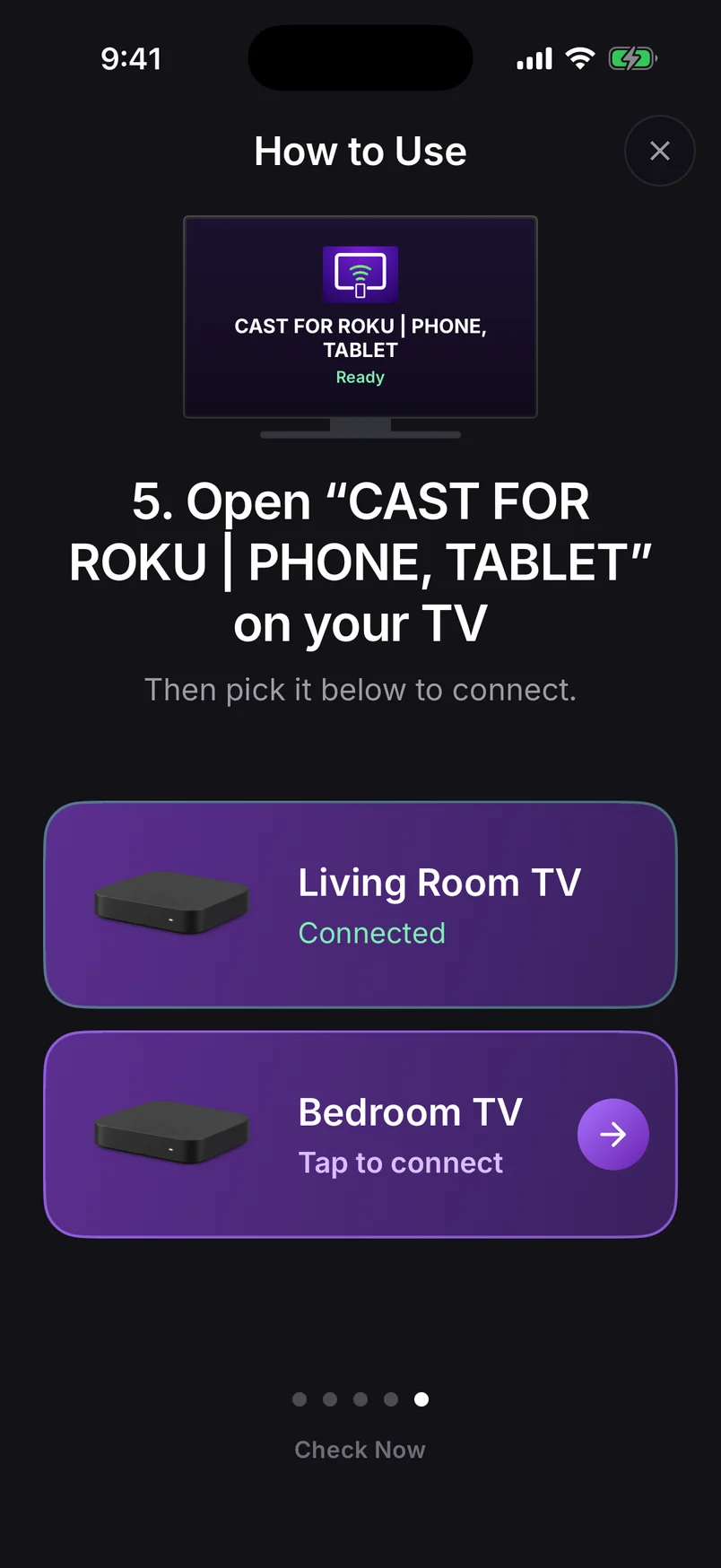
How to Use, step 1: press the Home button on your Roku remote
Step 1 of 10

Choose a step, use the arrows, or swipe the phone. Play to advance automatically.

Step 1 of 10: Press Home on your Roku remote

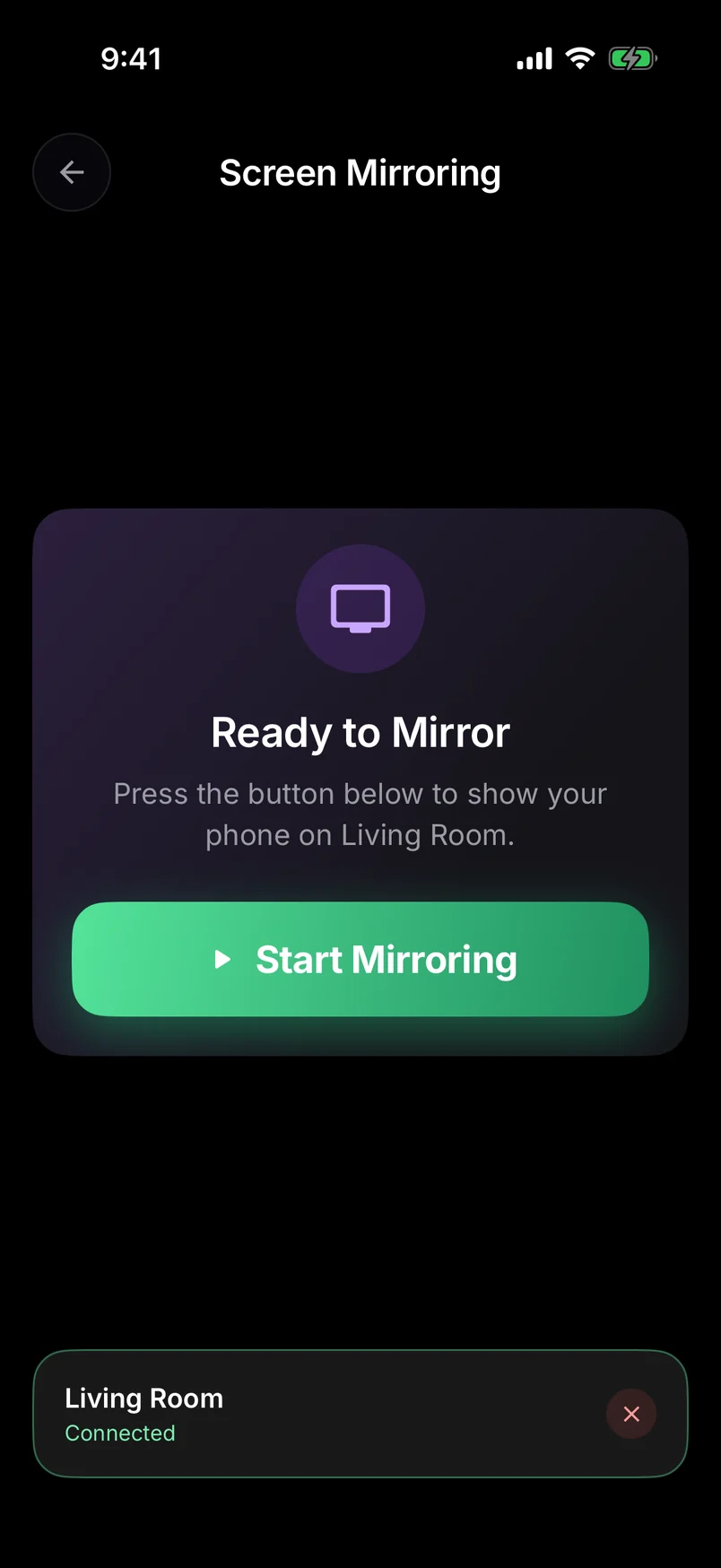
Full walkthrough: how to screen mirror Android to a Roku TV.

Using the TV's built-in mirroring instead

If your phone has Smart View or Wireless display, go to SettingsSystemScreen mirroringScreen mirroring mode on the TV, choose Prompt or Always allow, then pick the TV from your phone's cast menu. Google Pixel phones can't do this — use the app on a Pixel.

Brand-by-brand notes

BrandGood to know
TCLThe biggest Roku TV maker. Roku models are named “Roku TV” on the box; TCL also sells Google TV models.
HisenseSells Roku TV, Google TV and VIDAA models — check the home screen.
onn. (Walmart)Budget Roku TVs. Keep the TV close to your router; entry models have modest Wi-Fi.
Sharp, Philips, Westinghouse, JVC, Pioneer, ProscanAll behave identically — same menus, same steps.
Roku Select, Plus and Pro SeriesRoku's own TVs, including 2026 Pro Series OLED models.
Menus are the same on every Roku TV because Roku makes the software, whoever makes the panel.

Sound on a Roku TV

Choose Screen + Sound in the app (Android 10+) to play your phone's audio through the TV speakers or a connected soundbar. Instant Video keeps audio on the phone for the lowest delay — handy for presentations where you don't need sound.

Keep the TV on the Roku home screen

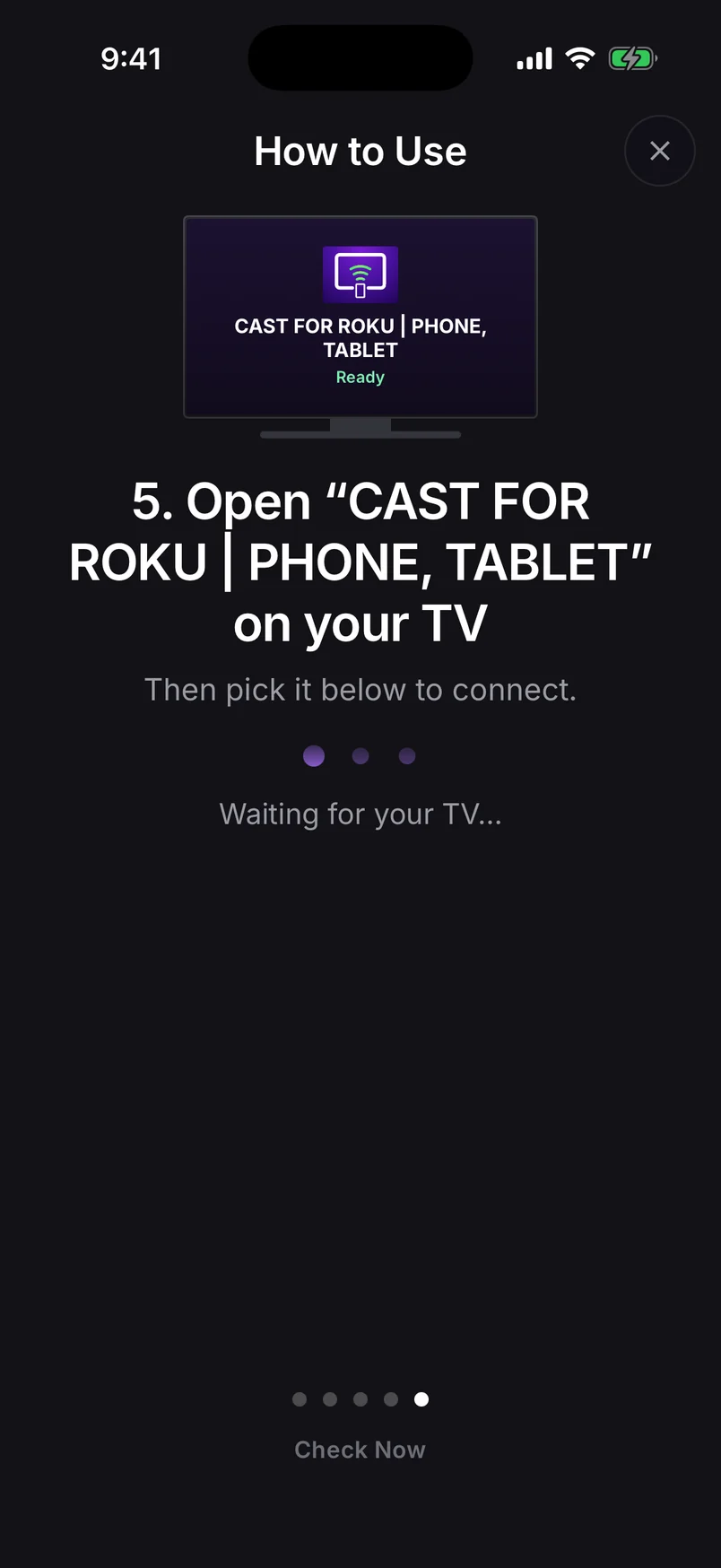
A Roku TV closes channels when it switches to an HDMI input or goes to sleep. If your phone suddenly can't find the TV, press Home and open the Cast for Roku channel again, then reconnect from the app.

  • Use the TV's 5 GHz Wi-Fi if your router has it — check under Settings › Network › About.
  • Turn off any VPN on your phone while mirroring.
  • Your phone can also be the TV's remote — volume and power included on Roku TVs.
Control the TV from your phone, tooOn a Roku TV, a phone remote app controls everything including volume and power. Set it up in two minutes.

Frequently asked questions

How do I screen mirror to my TCL Roku TV?

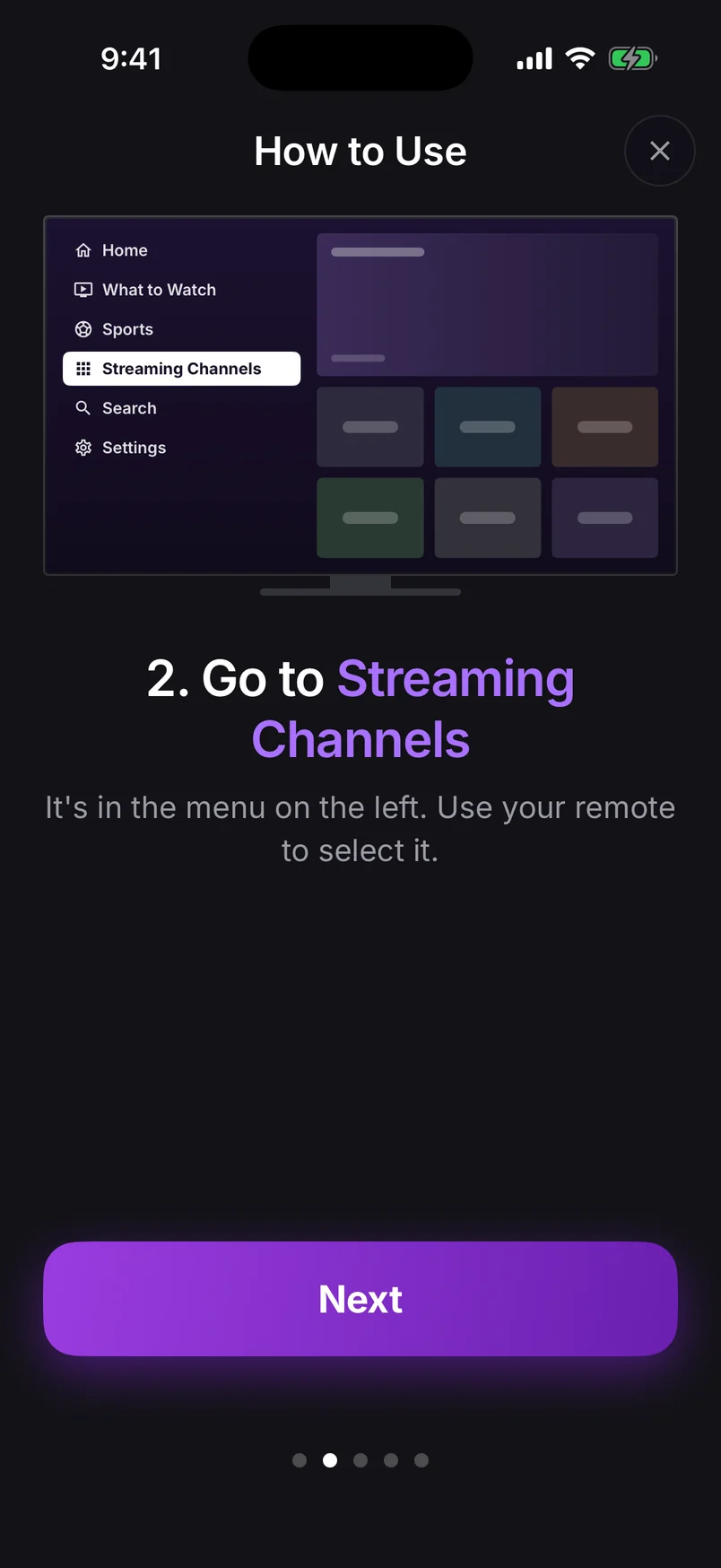
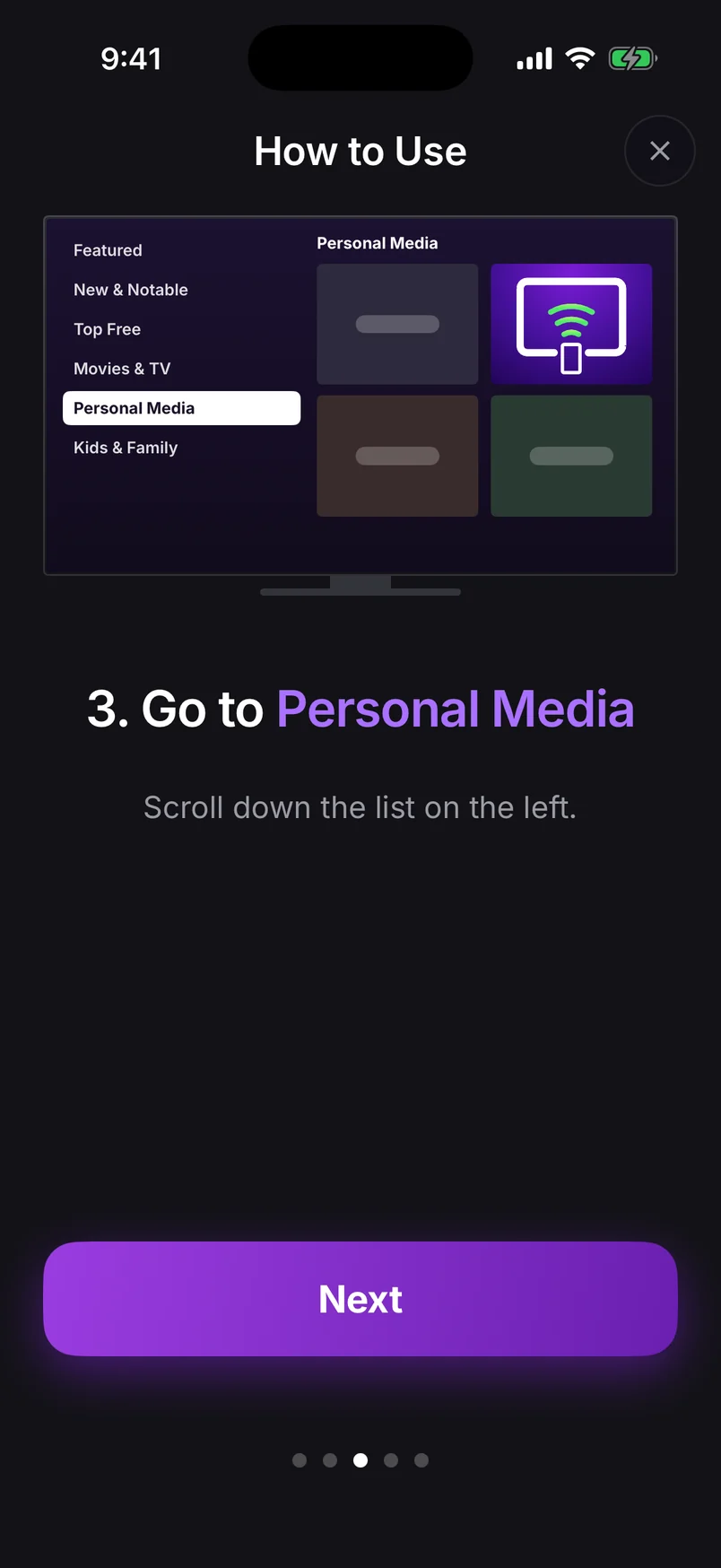
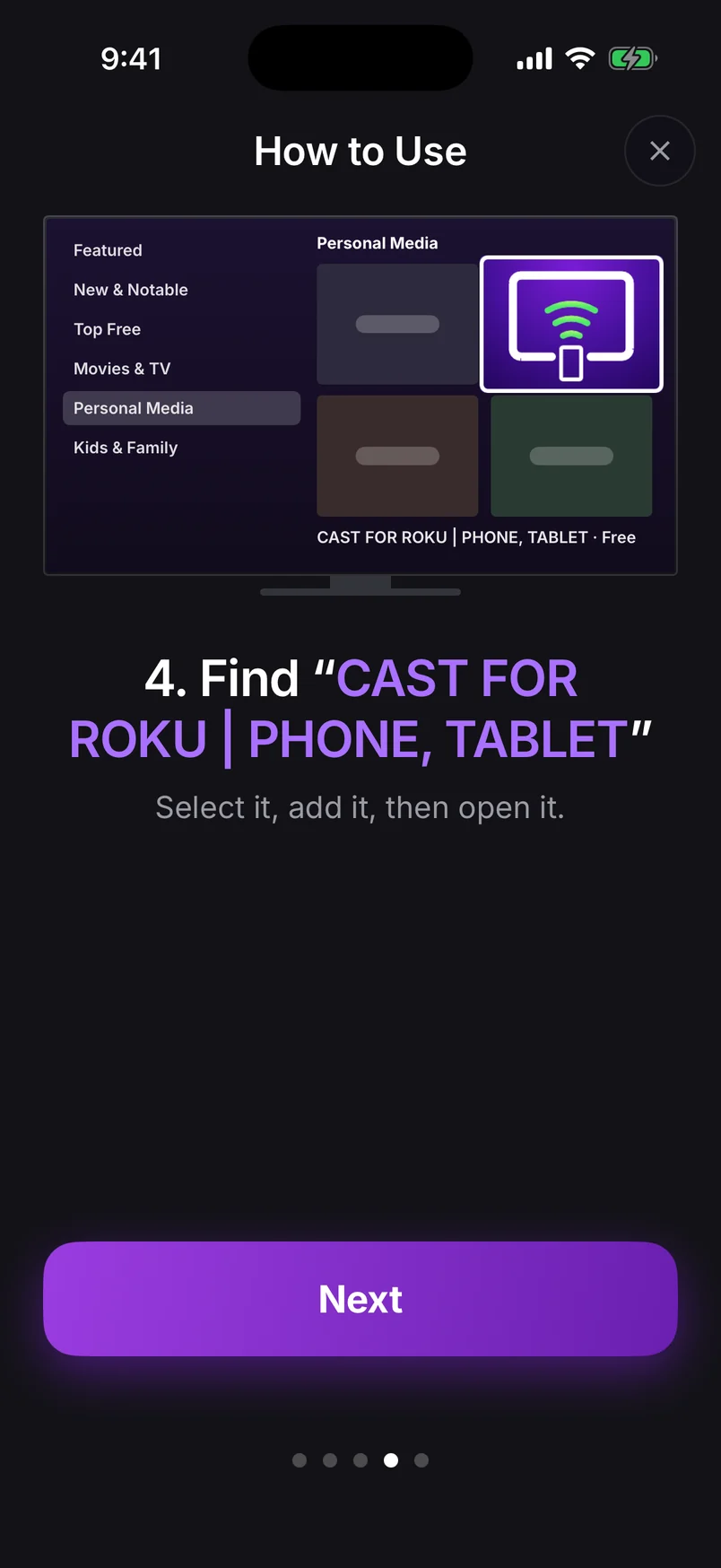
Add the free Cast for Roku | Phone, Tablet channel from the Roku store on the TV, open our app on an Android phone on the same Wi-Fi, tap the TV and then Mirror Screen. TCL Roku TVs also support Roku's built-in mirroring for Miracast phones via Settings › System › Screen mirroring.

Does Hisense Roku TV support screen mirroring?

Yes. Hisense Roku TVs support Roku's built-in mirroring and work with our app. Note that Hisense also sells Google TV and VIDAA models, which aren't Roku TVs.

How do I screen mirror to an onn. Roku TV?

The same way as any Roku TV: add the Cast for Roku channel, connect our app on the same Wi-Fi, and tap Mirror Screen. onn. Roku TVs also support built-in mirroring for Miracast phones.

Where is screen mirroring on a Roku TV?

Press Home, then go to Settings › System › Screen mirroring. Set Screen mirroring mode to Prompt or Always allow.

Remote Cast Labs is an independent developer and is not affiliated with, endorsed or sponsored by Roku, Inc. Roku, Roku TV, Roku Express, Roku Streaming Stick, Roku Ultra and Roku Streambar are trademarks of Roku, Inc. Other product names belong to their owners.

Roku Screen Mirroring
4.7 · Free on Android & iOS

Cast your screen, photos and videos to any Roku TV.

  • Works with every Roku TV and Roku player — no Miracast needed
  • Mirror your whole screen, with sound on Android 10+
  • Cast photos, videos, YouTube and web video
  • Finds your TV by itself — no codes to type
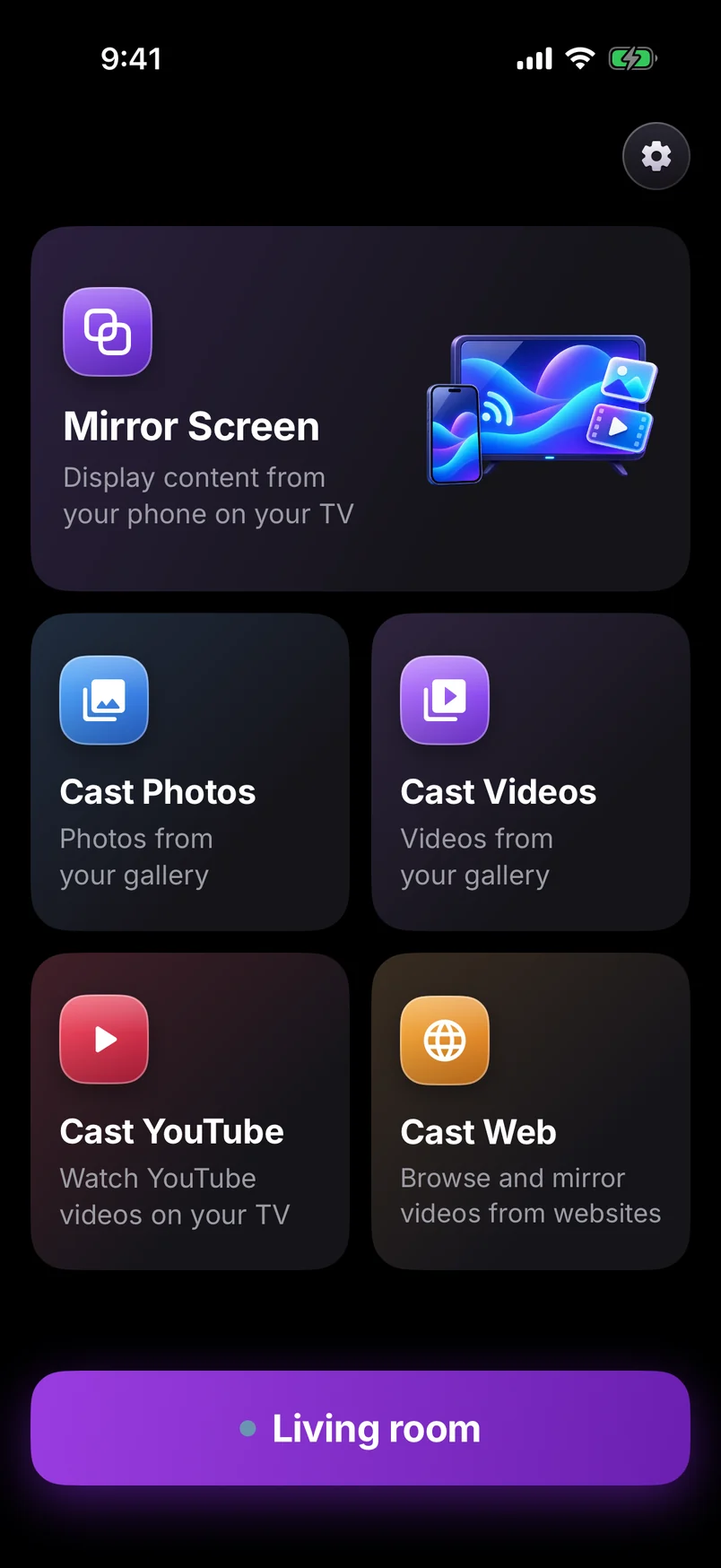
Screen mirroring app home connected to the Living room TV
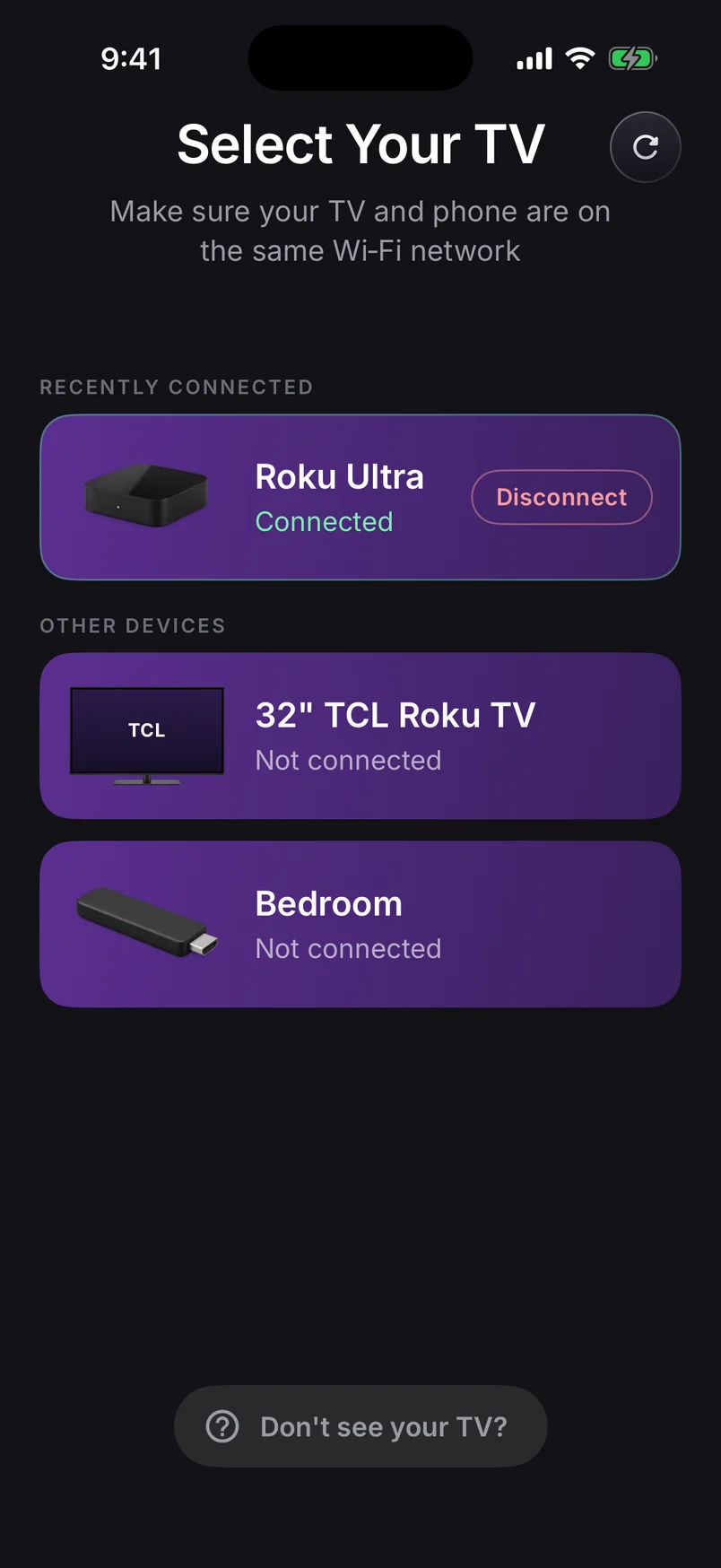
Select Your TV: a Roku Ultra connected, with a 32-inch TCL Roku TV and a Bedroom stick on the same Wi-Fi
All articles →