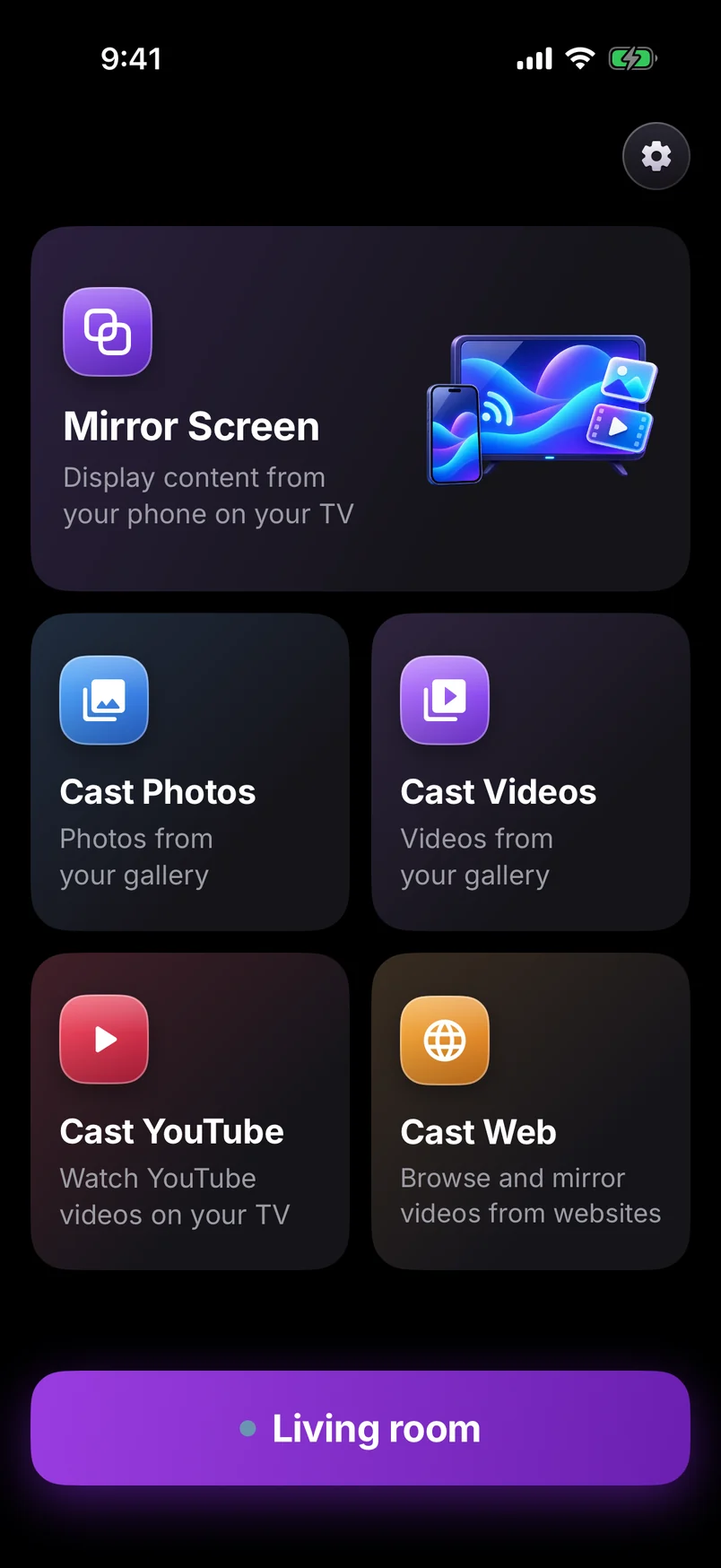
Find your symptom
| What you see | Most likely cause | Jump to |
|---|---|---|
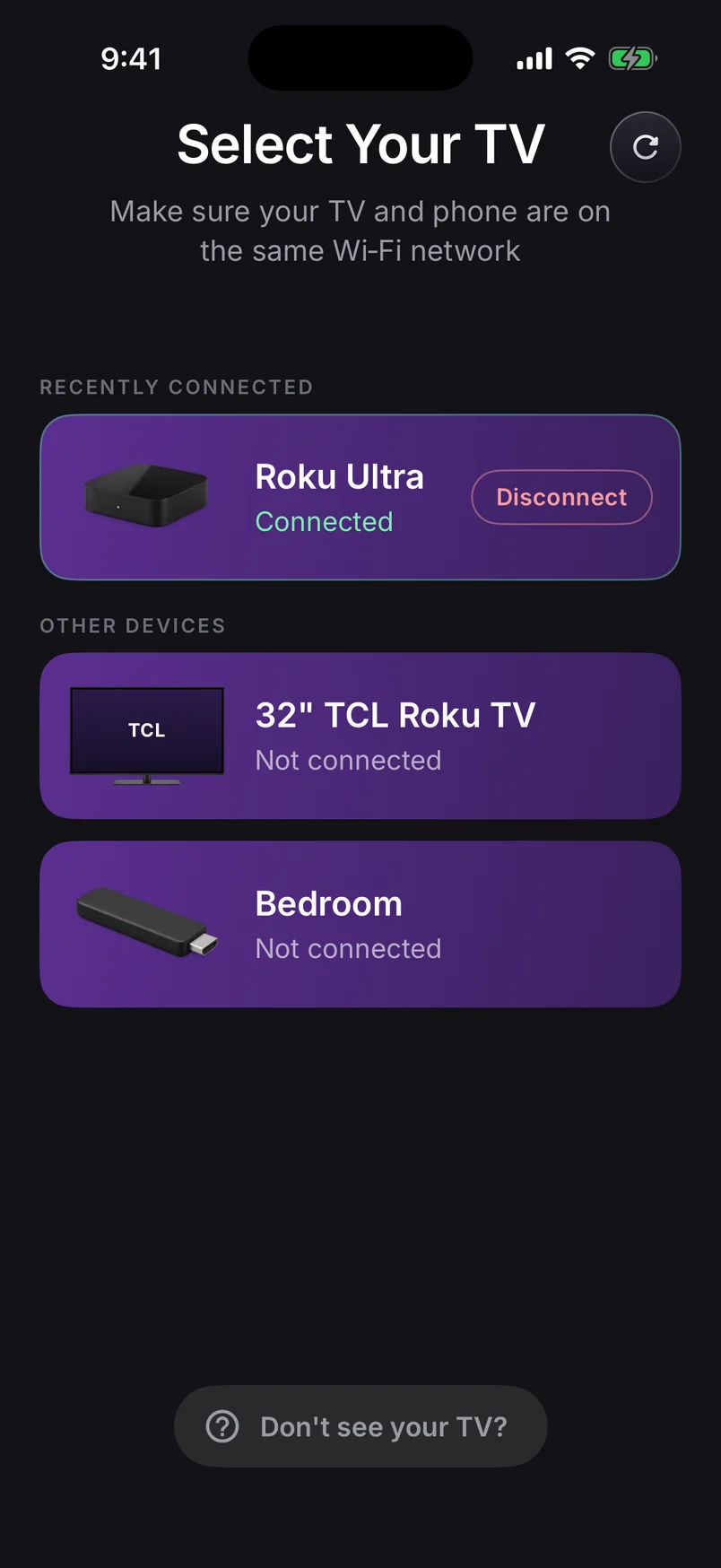
| Roku doesn't appear at all | Different network, VPN, guest Wi-Fi | Fix 1–2 |
| Roku missing from Smart View / Cast | Phone lacks Miracast, mirroring off, or blocked | Fix 4–5 |
| App says the TV needs setup | Cast for Roku channel not open | Fix 3 |
| Picture stutters or freezes | Weak Wi-Fi at the Roku | Fix 6 |
| No sound | Mode or audio permission | Fix 7 |
| Black screen in Netflix etc. | The app blocks screen capture | Fix 8 |
9 fixes, in the order to try them
1.Put both devices on the same Wi-Fi
Compare the network name on your phone with the Roku's under SettingsNetworkAbout. They must match exactly. Guest networks deliberately stop devices from seeing each other, so use your main network. Routers that split 2.4 GHz and 5 GHz into separate names can cause the same problem.
2.Turn off your VPN
A VPN sends your phone's traffic away from home before it can reach the TV, so the Roku vanishes even though it's on and working. Pause the VPN while you mirror.
3.Open the Cast for Roku channel (app users)
Our app sends your screen to the Cast for Roku | Phone, Tablet channel. Roku closes channels when the TV sleeps or switches input, so open it again from the home screen and leave its Ready screen up. If the TV offers an update for the channel, take it.
4.Turn on built-in mirroring (Smart View users)
Go to SettingsSystemScreen mirroringScreen mirroring mode and choose Prompt or Always allow. If you once tapped Always block, remove your phone under Screen mirroring devicesAlways blocked devices.
5.Check that your phone and Roku can use built-in mirroring
Google Pixel phones don't support Roku's built-in mirroring, and neither do the Roku Express 3700 and Express+ 3710. If either applies, use our app, which doesn't rely on it. See the full compatibility list.
6.Strengthen the Wi-Fi signal
Stutter and freezes mean the stream isn't getting through. Move the phone closer to the router, use the 5 GHz band, move a stick out from behind the TV with an HDMI extender, or plug a Roku Ultra into Ethernet. In our app, Instant Video mode is the most forgiving on a busy network.
7.Fix missing sound
Choose Screen + Sound (Instant Video keeps audio on the phone) and allow the audio permission when Android asks. If you declined it before, enable it under SettingsAppsyour mirroring appPermissions on the phone. Sound on the TV needs Android 10 or later.
8.Black screen in Netflix, Disney+ and similar apps
This isn't a fault. Those apps protect their videos from screen capture, so menus appear on the TV but the video stays black. No mirroring app can override it — open the service's own Roku channel instead.
9.Restart everything once, then update
Restart the Roku (SettingsSystemPowerSystem restart or unplug it for 10 seconds), restart your phone, and check SettingsSystemSystem update. It's boring, but it clears a surprising number of stuck connections.
Need to reopen or install the receiver channel? Follow the TV setup screens below.
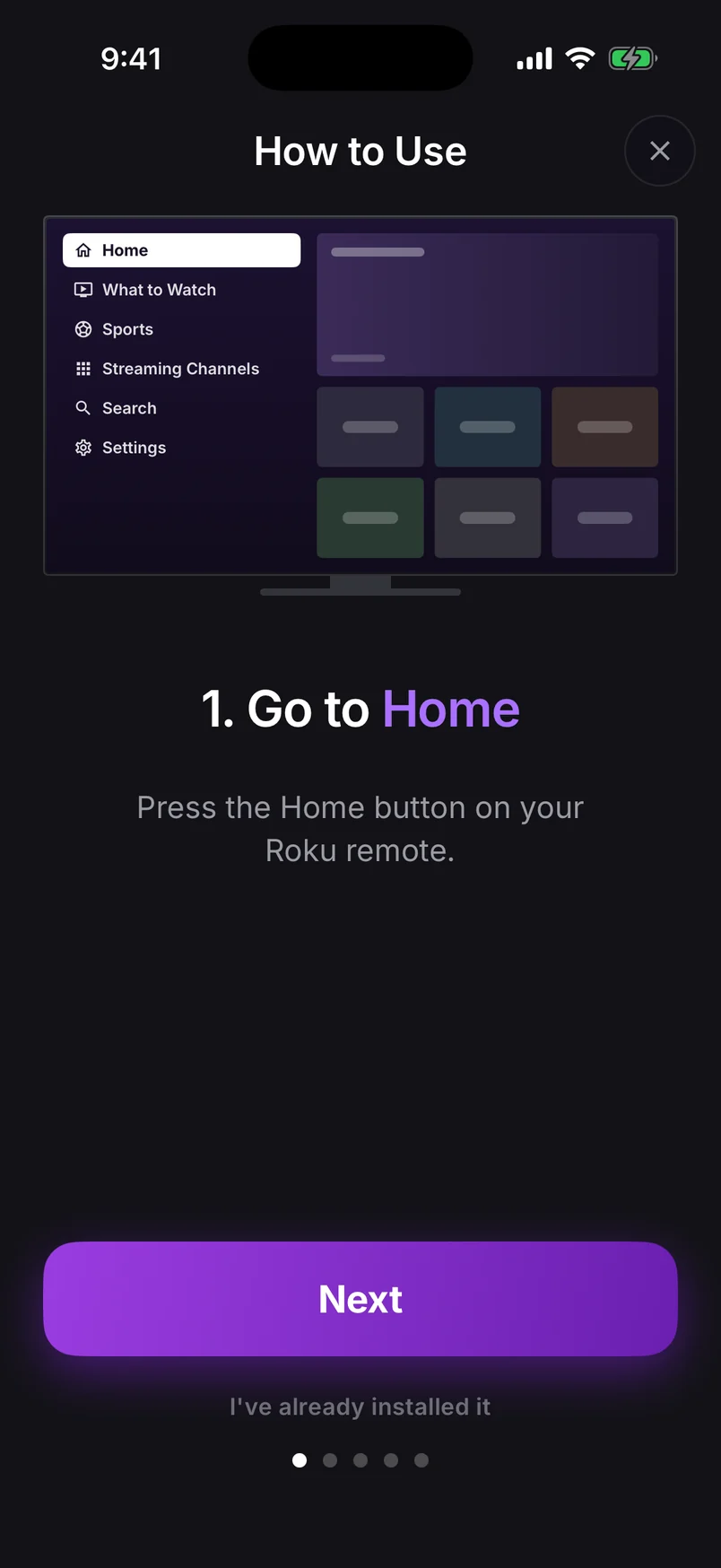
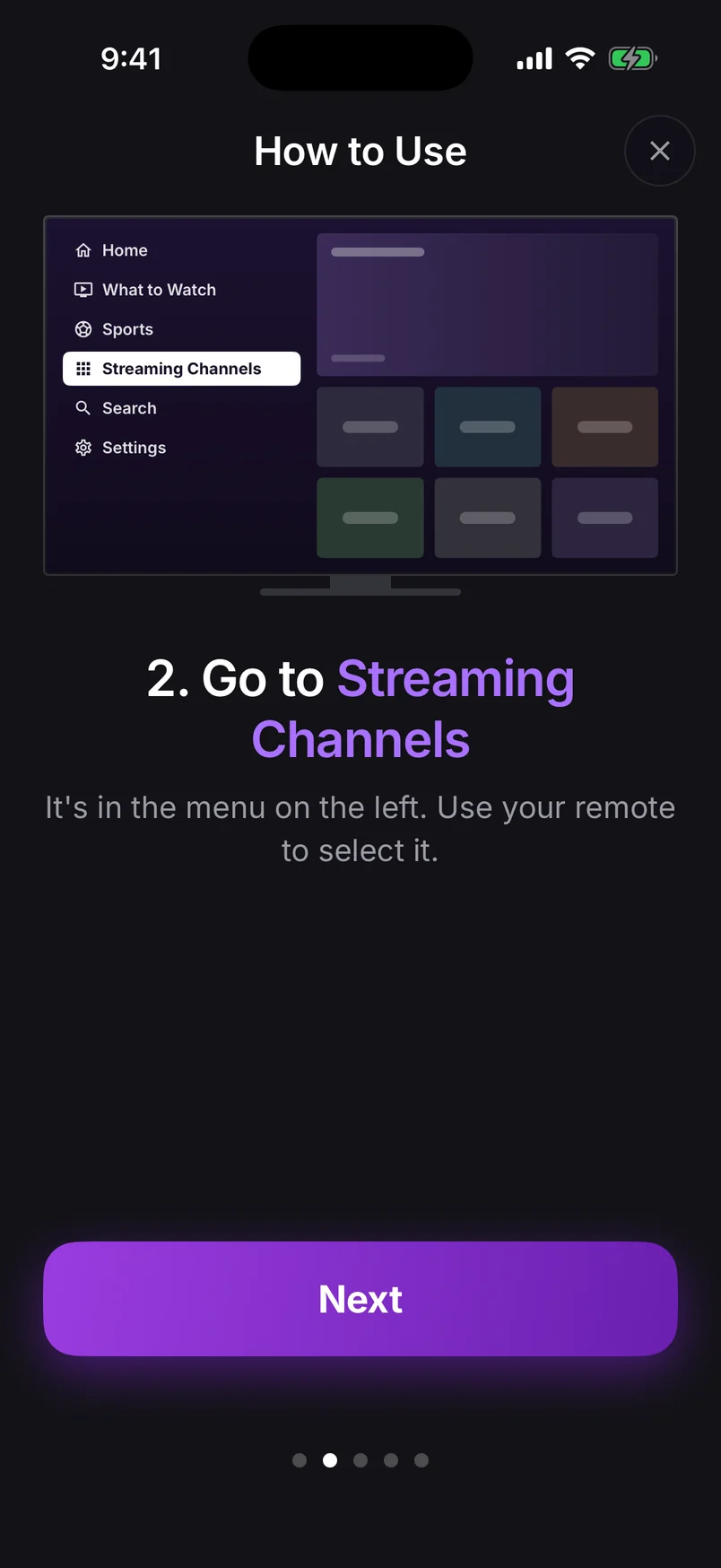
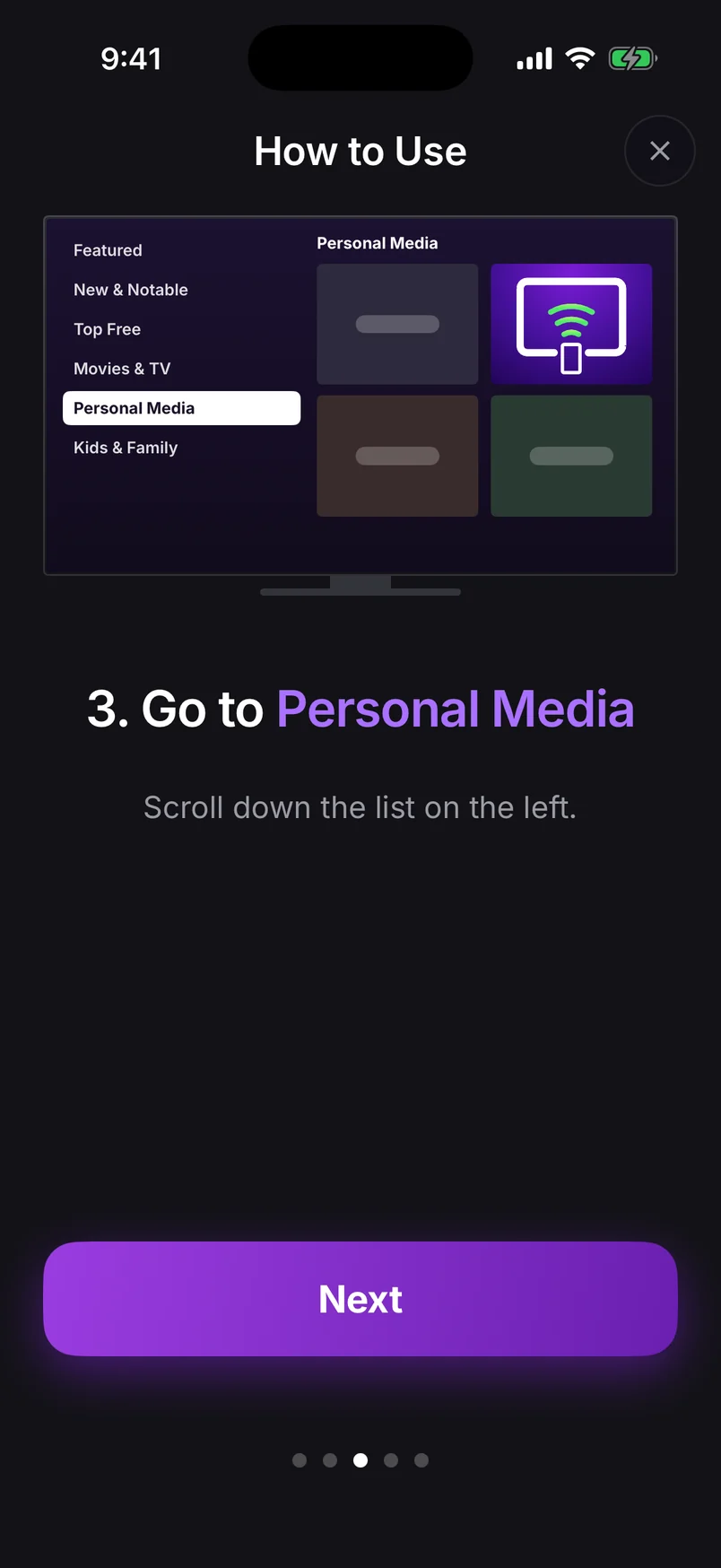
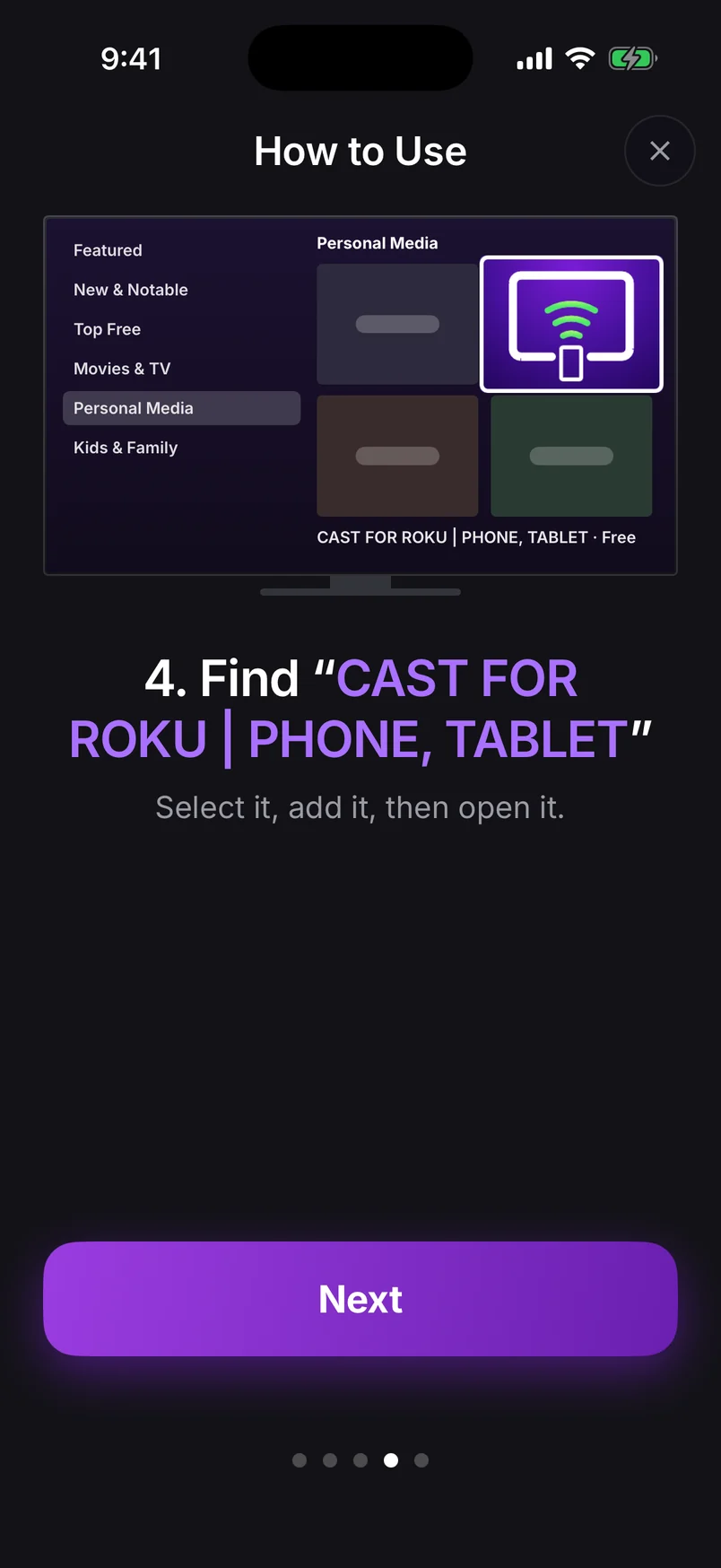
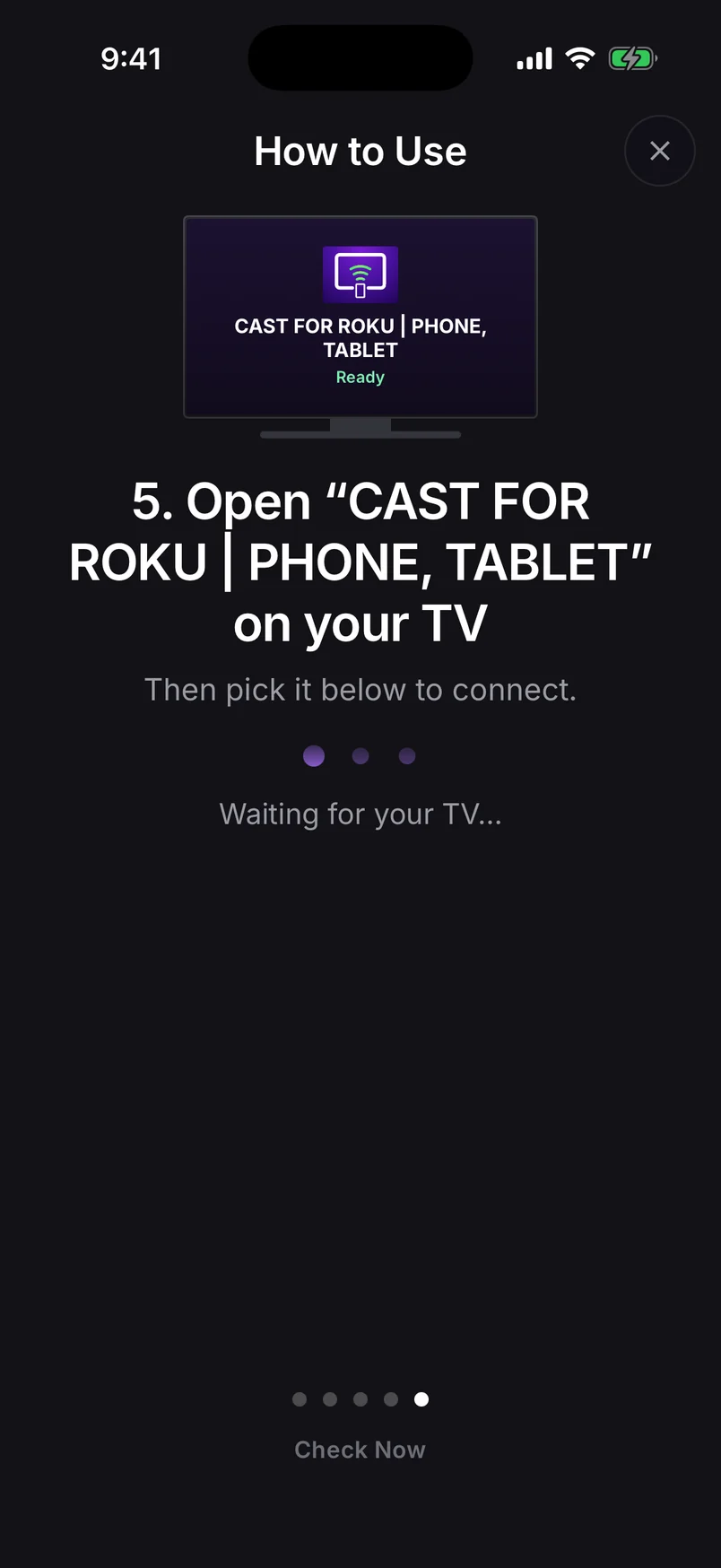
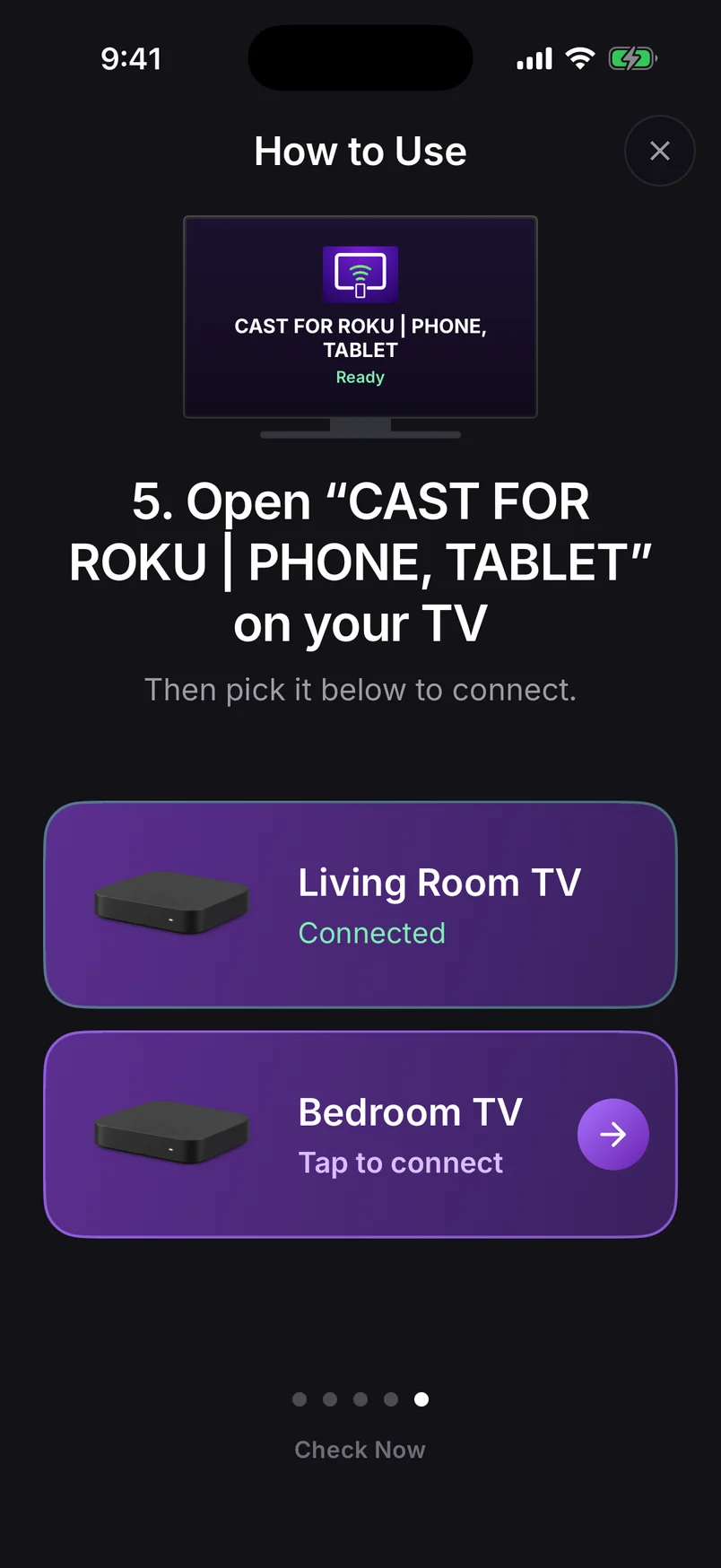
Choose a step, use the arrows, or swipe the phone. Play to advance automatically.
Step 1 of 6: Press Home on your Roku remote